![logo-effectconnect-liggend-2021.png]](https://www.effectconnect.com/hs-fs/hubfs/Logo%20EffectConnect/logo-effectconnect-liggend-2021.png?height=24&name=logo-effectconnect-liggend-2021.png)
Go to
- What is the Channel manager and what do you use it for?
- How to add, edit or delete a channel in the Channel manager?
What is the Channel manager and what do you use it for?
In the Channel manager you can manage basically all the settings that are related to your channels or marketplaces. Here you can enable or disable channels, change the attributes that are being used for the data that is sent to a channel, create product mappings and much more.
To access the Channel manager, follow these steps:
1. Go to the menu on the left side of EffectConnect.
2. Click on 'Apps':

3. Select 'My apps':
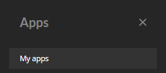
Here, you can manage all the settings related to your channels or marketplaces.
How to add, edit or delete a channel in the Channel manager
To add, edit, or delete a channel in the Channel manager, follow these steps:
-
Edit a channel: click on the edit icon.

-
Add a new channel: click on the 'Add channel' button or go to 'Apps > App store'.

-
Delete a channel: simply click on the bin icon. Deleted channels are kept in quarantine for 30 days, allowing you to recover them if you change your mind.
ℹ️Would you like to delete a channel? Please always contact our Support team so that we can process the cancellation in your subscription. We do not receive an automatic notification when a channel is deleted!
Learn how to configure a new channel step by step?
Would you like to walk through the complete process of configuring a new channel? Or need a refresh of what the configurations mean? Then read this article of our onboarding guide orbook a consultation.