![logo-effectconnect-liggend-2021.png]](https://www.effectconnect.com/hs-fs/hubfs/Logo%20EffectConnect/logo-effectconnect-liggend-2021.png?height=24&name=logo-effectconnect-liggend-2021.png)
Viewing product information in different languages
If your backoffice contains product information in multiple languages and these languages are imported into EffectConnect, you can view and manage the different language versions in EffectConnect.
You can also use mapping groups to send the correct language-specific product information to your marketplaces.
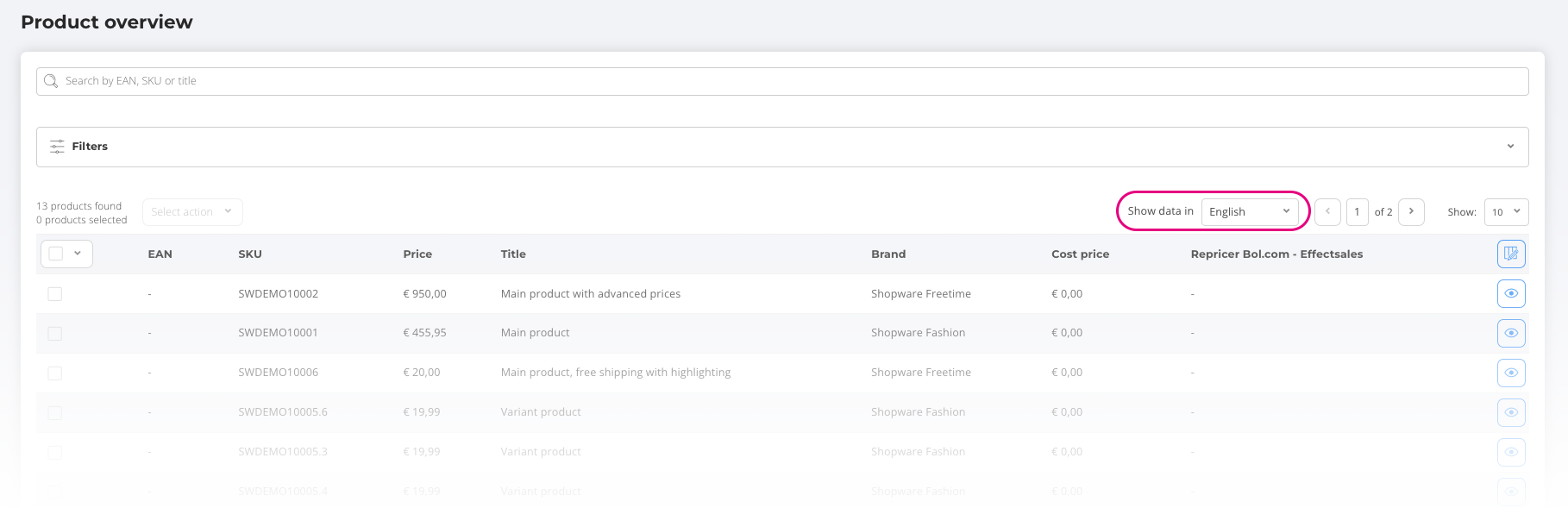
Change the language in the product overview
To view your product information in another language:
- Go to Catalog > Product overview in the menu on the left.
- Find the Show data in field.
- Select the language you want to view.
The product overview will now display the product information in the selected language.
Change the language for a specific product
You can also switch languages when viewing an individual product.
Open the product in EffectConnect and select the desired language in the top-right corner of the screen. The available product information will then be displayed in that language.

 EffectConnect can only display and send language-specific product information if that language and its product data are available in EffectConnect.