Skip to content
English
  • There are no suggestions because the search field is empty.

Fulfilment manager

Manage your external inventory on marketplaces such as Bol.com (LVB) and Amazon (FBA) with the Fulfilment manager. Set products to the correct fulfilment type manually or automatically via Autoswitch, and easily create shipments to replenish your stock.

Go to:

  1. Which marketplaces do we support?
  2. Using the Fulfilment manager
  3. Fulfilment manager overview
  4. Fulfilment manager detail page
    1. Marketplace status
    2. Products in the Fulfilment manager
    3. Conditions for automatic delivery type switching
    4. External stock alerts
  5. Replenishments
  6. Stock locations

Which marketplaces do we support?

We support retrieving and exporting external stock on the following marketplaces:

  • Bol.com

  • Amazon

Additionally, you can create replenishments for:

  • Bol.com

kb-info Go to Replenishments in this article for more information on this topic.

Using the Fulfilment manager

You will find the Fulfilment manager in the menu under Apps > Fulfilment manager.

Within this section, you will see the sub-items:

  • Fulfilment manager

  • Replenishments

  • Stock locations

Fulfilment manager overview

In this overview, you will see all connected marketplaces where external fulfilment is supported.
Click the eye icon to proceed to the detail page.
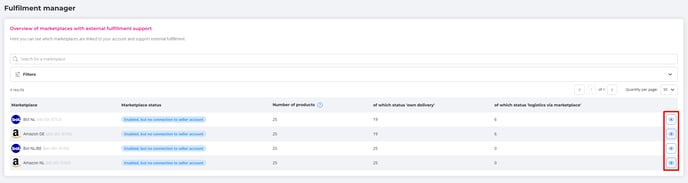
FFM_overview mps


Fulfilment manager detail page

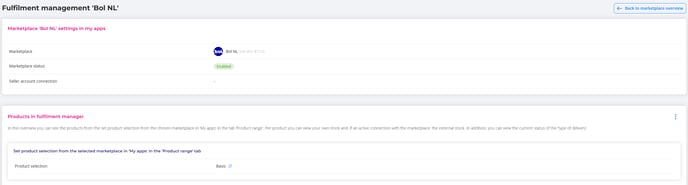
Marketplace status
Displays the status of the marketplace and whether the connection is active. We do not retrieve stock if a connection is disabled or unauthorised.
FFM_marketplace status

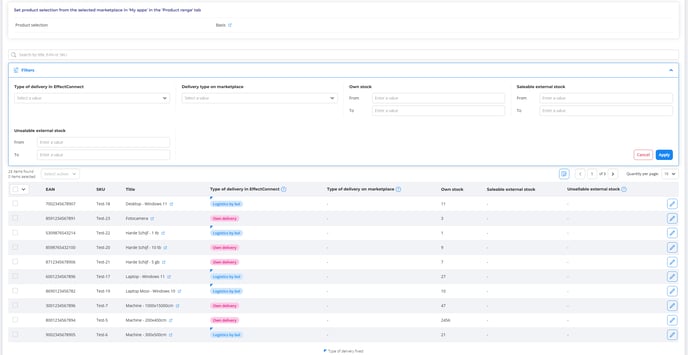
Products in the Fulfilment manager
Here, you can view which products are part of the productselection connected to the relevant marketplace connection.
FFM_products in FFM

In the overview, you can:

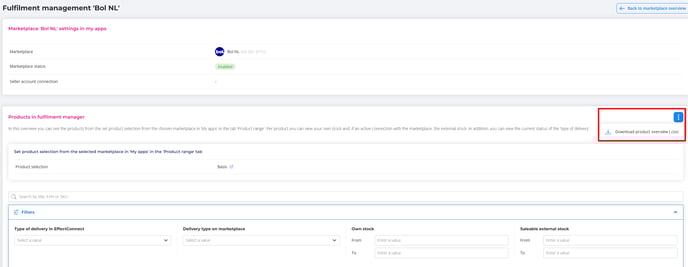
  • Download the overview via the three dots in the top right corner.
FFM_overview download 3 dots

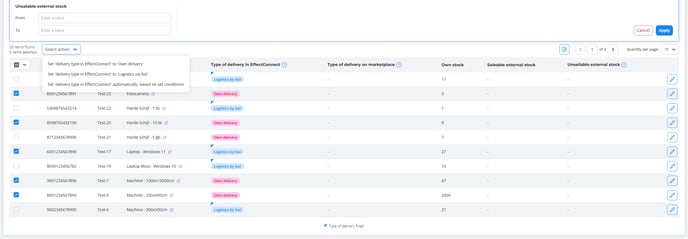
  • Select products in bulk to adjust the delivery type.
FFM_select products for status

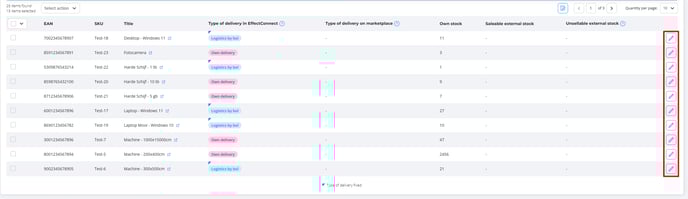
  • Open a slide-out for each product via the pencil icon to view detailed information and change the delivery type.
FFM_products-open slide out

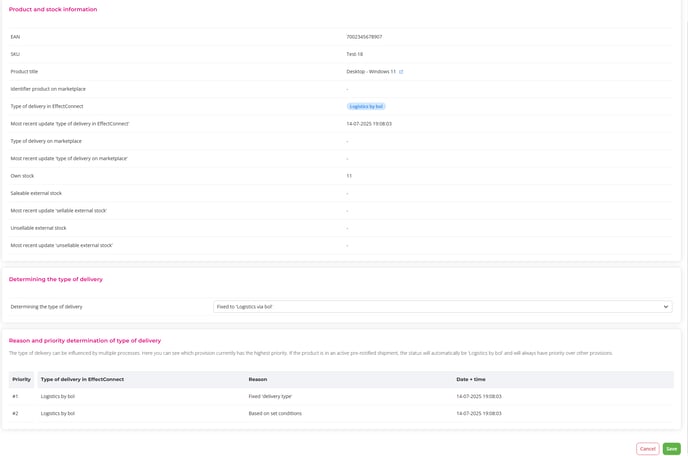
In this slide-out, you can:

  • View available product and stock information

  • Set the delivery type

  • View the prioritisation of fulfilment types

FFM_product and stock info

Automatich switching: conditions for automatic delivery type switching

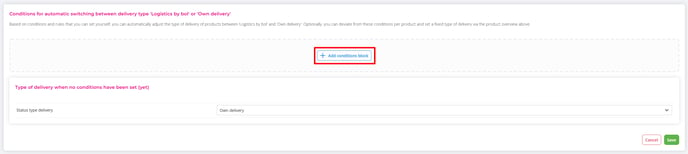
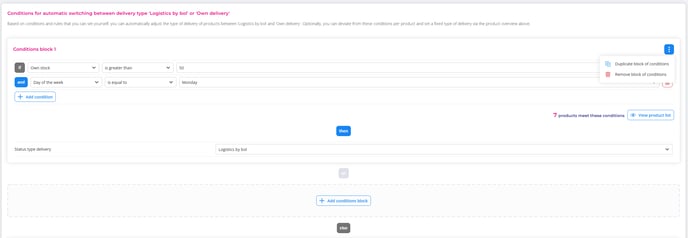
In this section, you set conditions for the automatic switch (autoswitch). You decide how and when a product will automatically switch fulfilment type.

kb-info Automatic switching of delivery type is not available in the free version! Would you like to enable automatic switching? Please feel free to contact us.

The fixed delivery type always takes precedence over other conditions. When a product is included in an active shipment or replenishment, it will automatically be assigned the delivery type required for that shipment, and this type will take priority.

FFM_add conditions block

FFM_conditions block 1

Stock conditions

  • External stock

  • Own stock

Time-related conditions

  • Date
  • Day of the week

  • Time

Other conditions

  • Product attributes

  • Custom attributes

  • Channel attributes

Blocks can be duplicated or removed via the three dots:

FFM_remove block of conditions

FFM_remove block of conditions else

Stock alarm external stock  (optional)

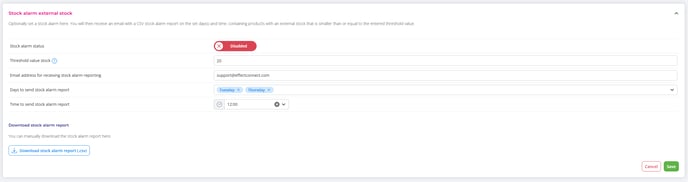
Here, you can set up a stock alarm. You will receive an email on the selected day(s) and time with a CSV report listing products whose external stock is below or equal to the threshold value.

You can also download this report directly.
FFM_stock alarm external stock

Replenishments


What are replenishments?

Replenishments are supply actions you can carry out using the Fulfilment Manager.
Within a single replenishment, you can include multiple shipments. This is useful, for example, when your stock is distributed across different bol warehouses.

Replenishments overview

In the replenishments overview, you will see a complete list of current and previous replenishment actions. Here, you can enable or disable the ‘show shipment details within replenishments’ switch or apply filters as needed.

REPL_

Filters:

REPL_filters

Overview without shipment details:

REPL_without shipment details-1

Overview with shipment details:

REPL_with shipment details


Columns in the overview

  • Creation date of the replenishment
  • Replenishment name
  • Number of unique products in the replenishment
  • Total quantity
  • Number of shipments
    • Usually 1 shipment, in some cases multiple, for example if bol allocates to different warehouses.
  • Shipment status(es)
  • Shipment reference (visible in overview with shipment details)

History

Within the replenishments overview, you can also view the shipment history and status progression of the replenishment by clicking the clock icon:

REPL_history

A slide out opens:

REPL_history status

If shipment details are displayed in the replenishments overview, the following statuses may be shown:

REPL_all statusses

Shipment Detail Page

The contents of a shipment detail page may vary depending on the status of the shipment.

Images are in Dutch, in your EffectConnect acocunt they will be translated displayed in English.

Basic options
Here, you can download labels, view the shipment history (clock icon), and check live shipment data.

Shipment details
Displays detailed information about the shipment, with the option to cancel (depending on status).


Products in shipment
Displays the announced products and quantities. While creating a pre-registration, the product quantities can still be adjusted; after processing the pre-registration, this is no longer possible.

Shipment error reporting
Any error messages from bol will be shown here. Reports can be downloaded and refreshed(click on 3 dots on thetop right)

Create a new replenishment – step-by-step guide

  1. Go to replenisment overview and click

  2. Enter a name and optionally add a description.

Add products using one of the three available methods:

  1. CSV-upload

  2. Manual selection

  3. Productselection

  4. Enter the desired quantities.
  5. Choose Save as draft or proceed directly to Destinations.
    1. Note: after this step, you can no longer add new products, but you can still adjust quantities.

Shipment destination(s)

The Fulfilment Manager automatically verifies the correct destination for each product.

  • Only products with the same destination can be included in a single shipment.
  • Replenishments are split into multiple shipments if necessary.
  • You can exclude certain destinations (e.g., sending 1 unit to a separate warehouse).


Once you complete this step, the replenishment is ready for pre-registration.

Pre-announce shipments

When pre-announcing a shipment, you make choices for labels and transport:

  • Labels: print labels yourself or have bol provide labeling
  • Transport: use your own carrier or bol’s pickup service

Once saved, the pre-announcement will be processed:

  • Products will briefly be set to LVB status (if necessary) and will be reverted to the relevant status after registration.
  • The pre-announcement continues running in the background.
  • From this point, the shipment will automatically progress through the registration statuses.

Destinations explained

In the  Fulfilment manager, replenishments are automatically divided into separate shipments when products have different destinations. This reduces errors and ensures bol compliance.

For more information about destinations and LVB, click offer suitable for Logistics via bol.


Stock locations

This option is available in the premium version of the Fulfilment Manager.

Go to Fulfilment manager → Stock locations

In a single overview, you can see the quantities, value, and availability of your products per stock location. These can be your own locations as well as marketplaces that support external fulfilment.

Stock levels per location are visible instantly, giving you real-time insight into your inventory distribution. Additionally, you can decide which attributes are used to display relevant information about stock, purchase price, and sales price.