![logo-effectconnect-liggend-2021.png]](https://www.effectconnect.com/hs-fs/hubfs/Logo%20EffectConnect/logo-effectconnect-liggend-2021.png?height=24&name=logo-effectconnect-liggend-2021.png)
Go to
- What is a base mapping?
- Where can you find the base mapping?
- Add base mapping
- Mapping base attributes
- Deviating from base mapping
- Change the base mapping setting in bulk
- FAQ
What is a base mapping?
The base mapping is an overarching mapping rule with a set of general attributes that matter for many categories within a marketplace. An attribute is included in the base mapping if it occurs in at least 50% of all categories of the marketplace.
By adding product attributes or fixed values, you can easily link additional information to the marketplace attributes. This information then flows automatically into your category mapping rules.
You can easily deviate from the base mapping per category mapping rule by setting your own or different attributes or values in that rule.
 Base mapping is set individually for each marketplace.
Where can you find the Base mapping?
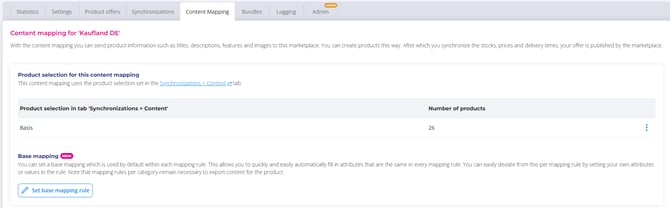
Go to Apps > Your Apps > open the relevant channel and go to the 'Content Mapping' tab.
Here you will see the base mapping above the category mapping rules:

Add Base Mapping
You can add the base mapping rule at any time, both when you don’t have any mapping rules yet and when mapping rules already exist. If you don’t have mapping rules yet, you start with the base mapping and then create the underlying mapping rules, in which the base attributes are filled automatically. If you already have mapping rules, you can add the base mapping rule to your existing mapping.
- Open the relevant channel in EffectConnect > go to the 'Content Mapping' tab > click on 'Set Base Mapping rule'.
Mapping base attributes
You will now see an overview of all attributes that occur in multiple product categories of the marketplace.
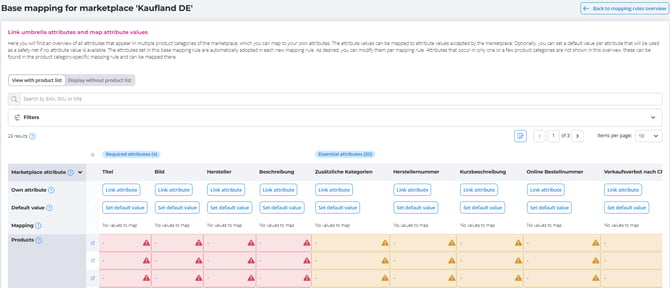
- Click on 'Add attribute'
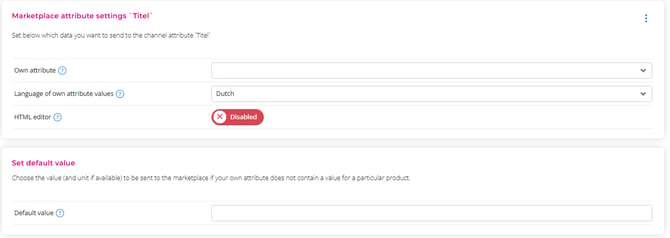
- Then click on 'Own attribute' > select the desired attribute from the dropdown menu.
- Set a default value: for each attribute, you can set a default value that will act as a safety net if no attribute value is known (optional).
Attributes that appear in only one or a few product categories will not be displayed in the base mapping overview but can be found in the specific mapping rule where you can map them.
Attributes that occur in only one or a few product categories do not appear in the base mapping overview. You can find and map them in the specific category mapping rule.
Deviating from Base Mapping
Within the regular mapping rules or in the base mapping rule, you can still decide whether to deviate from the base mapping.
When you open an attribute in an underlying mapping rule, you can choose from the following options:
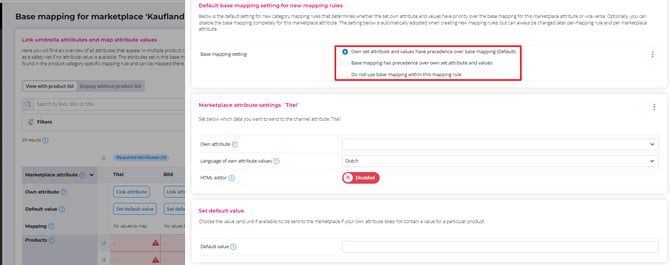
- Own set attribute and values have precedence over base mapping (Default)
- When you link attributes to specifications in the regular mapping, these take precedence over values linked to the same specification in the base mapping. In other words, the base mapping is only a fallback when you have not set a value.
- Base mapping takes precedence over custom set attributes and values
- The base mapping overrides attributes/values you have set yourself.
- Do not use base mapping within this mapping rule
- The base mapping is ignored.
Change the base mapping setting in bulk
You can apply the base mapping setting to multiple attributes or to all your existing category rules in one go. This way you don’t have to adjust each rule individually.
You can choose from the following options:
- Apply current setting to all attributes within this base mapping rule
- Use this if you want to apply the setting to all attributes in the base mapping rule.
- Apply current setting to the `Attribute name` attribute within all category mapping rules
- Use this if you want to change the setting of one specific attribute. The setting of this attribute is applied to all your existing category rules. If the setting is “Base mapping takes precedence”, the attribute in those rules is overwritten with the attribute linked in the base mapping rule.
- Apply current setting to all base mapping attributes within all category mapping rules
- Use this if you want to apply the current setting to all attributes in the base mapping rule and in all your existing category rules.
This is how you change the setting in bulk:
FAQ
How do I map the category rules after setting up the base mapping?
Go to the Content Mapping article for step-by-step instructions on mapping category rules.
I only want to send an attribute to the marketplace. Can I do this via the base mapping rule?
No, that’s not possible. The base mapping doesn’t send any data to the marketplace itself. It only fills attributes automatically in your category rules. A marketplace also expects a category for every product, and you set that via a category rule. So create a category rule for the category the product belongs to. The attributes from your base mapping, such as manufacturer details, are then included automatically. Read in the Content mapping article how to create a category rule.
I can’t find an attribute in the base mapping. Can I add it?
No, that’s not possible. The base mapping only contains attributes that occur in at least 50% of all categories of the marketplace, not just the categories you use. An attribute you often see in your own category rules may therefore be missing. In that case, map this attribute in the category rule itself.
I already have category mapping rules, but I want to change an attribute that is in the base mapping. Is that possible?
Yes, absolutely! You do this easily by changing the attribute in the base mapping rule and then choosing the mapping method: Base mapping takes precedence over custom set attributes and values. You can then apply the change in bulk via the three dots on the right-hand side of the settings.