![logo-effectconnect-liggend-2021.png]](https://www.effectconnect.com/hs-fs/hubfs/Logo%20EffectConnect/logo-effectconnect-liggend-2021.png?height=24&name=logo-effectconnect-liggend-2021.png)
Go to
Exporting product information
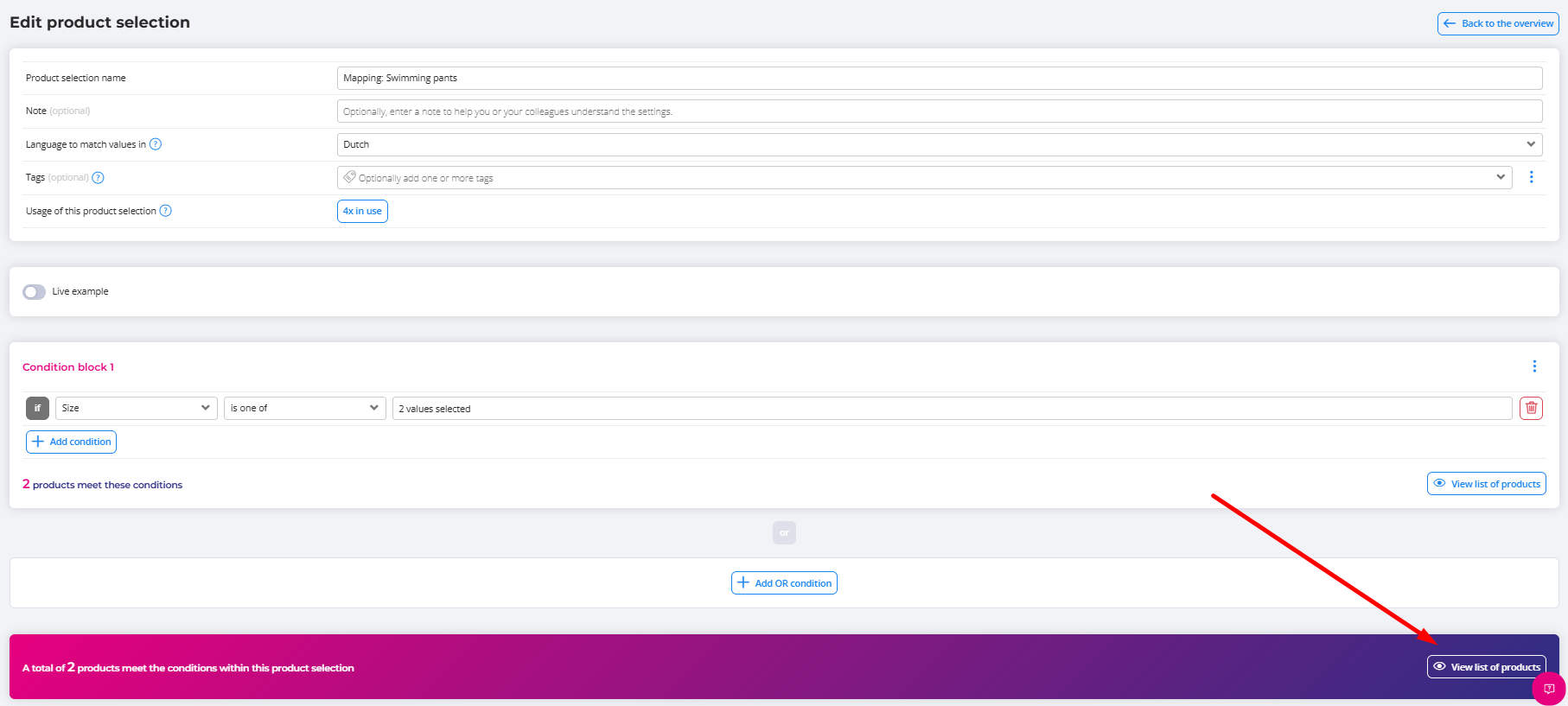
You can export the product information of all products in a product selection.
- Create a new product selection or open an existing one.
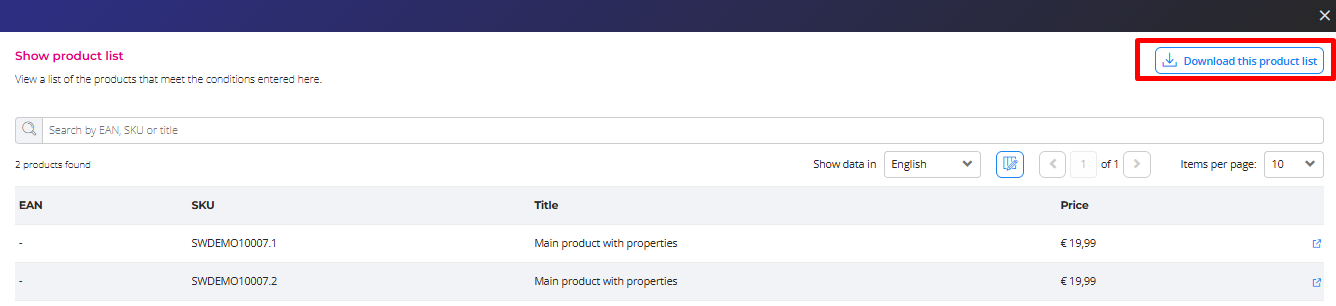
- Click view list of products.
- Click Download this product list.
- Download the CSV file.
Exporting repricer data
You can export repricer prices and data via a product selection. To do so, have the repricer save its calculations as attributes first. Read here how to do this.
Step 1: Save the repricer calculations as attributes
In the basic settings of a repricer rule, choose to create an attributes for all calculations. EffectConnect then saves the calculated price, as a custom attribute for each product.

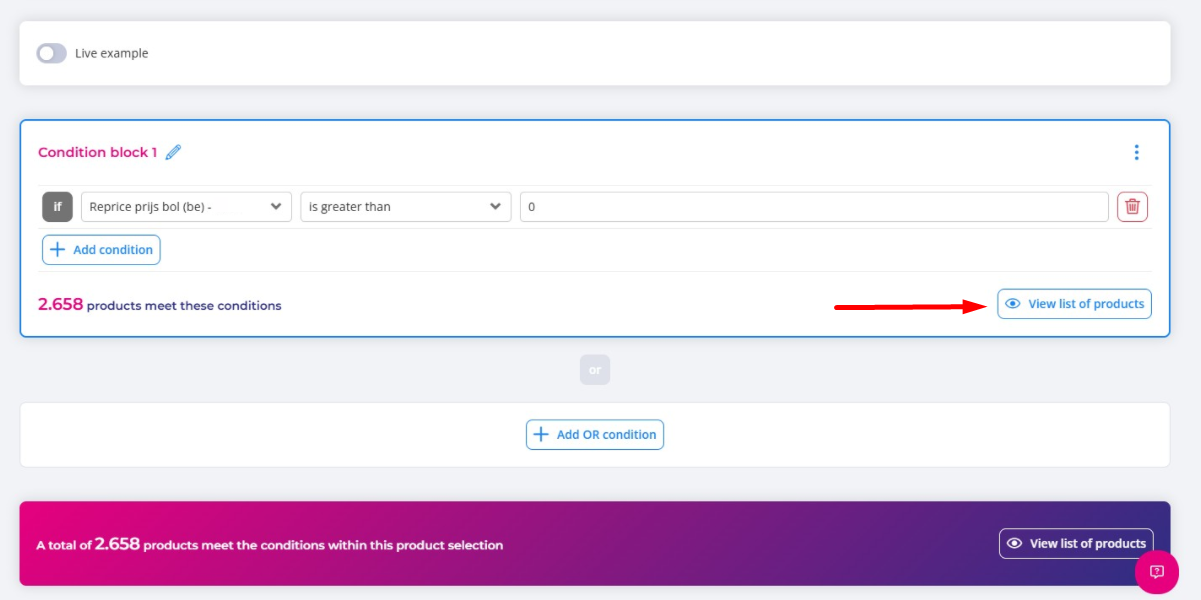
Step 2: Create a product selection with the repriced products
- Create a new product selection.
- Add a condition based on the repricer attribute, for example: the channel attribute Reprice / calculated price / Bol / be is greater than 0.
- Add other conditions if you like, for example for a specific brand or category.
This selection includes all products that have been repriced.
Step 3: Download the product list
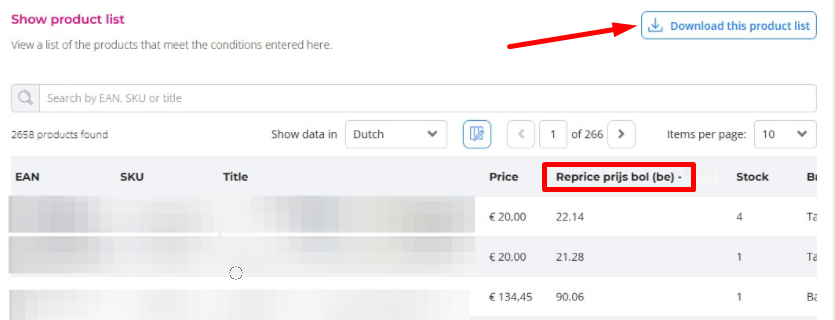
Download the product list in the same way as described under Exporting product information.
Add the repricer attributes to the export to include the prices and data in your CSV file.
Exporting order data
You can export order data from the order overview, from one or more channels.
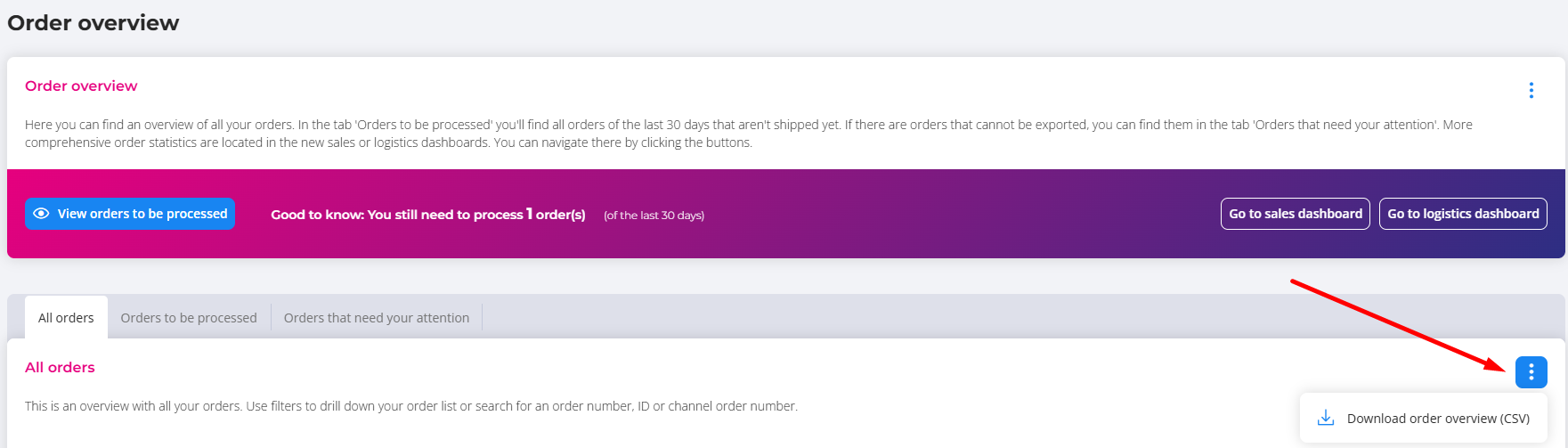
- Go to Orders > Order overview.
- Click the three dots in the top right corner of the screen.
- Click Download order overview (CSV)
- Select the data you want to include and download the file.
Read more in Download order data as a CSV file.
 You can open CSV files in a spreadsheet program such as Excel or Google Sheets.
Questions about exporting data? Please contact us. We’re happy to help.