![logo-effectconnect-liggend-2021.png]](https://www.effectconnect.com/hs-fs/hubfs/Logo%20EffectConnect/logo-effectconnect-liggend-2021.png?height=24&name=logo-effectconnect-liggend-2021.png)
Go to:
- Where do I find the Invoices module?
- How do I set up a company entity?
- How do I determine the invoice number?
- How do I create an invoice configuration rule?
- When is the invoice created and sent?
- How does the invoice reach bol?
- Where do I find my generated invoices?
- FAQ
Where do I find the Invoices module?
In case you cannot find the invoices module yet, it could be that the module is not yet part of your subscription. In case you would like to add the invoices module to your subscription, contact us!
You find the Invoices module under Orders > Invoices. Three parts work together there:
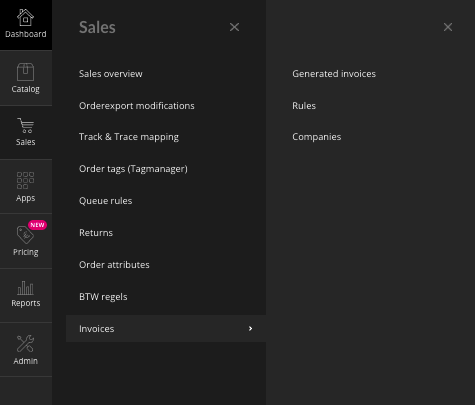
- Generated invoices: an overview of all invoices that have been created.
- Rules: determine, per channel and country, which entity, language and moment apply to creating and sending an invoice to a channel.
- Companies: the company details, logo and invoice numbering that appear on the invoice.
Start with your company entity, because you select it afterwards in an invoice configuration rule.
How do I set up a company entity?
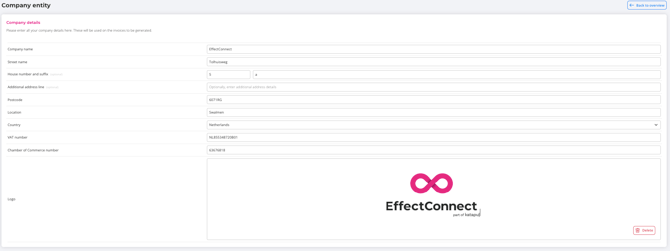
A company entity contains the details of the company that issues the invoice. If you have multiple companies, create an entity for each company.
- Go to Orders > Invoices > Companies.
- Create a new entity, or edit an existing one.
- In the block with company details, fill in the company name, the address details, your VAT number and your chamber of commerce number.
- Optionally, upload a logo. The logo appears in the top right corner of the invoice.
- In the second block, set the invoice numbering (see below) and save the entity.
How do I determine the invoice number?
For each entity, you choose from four options where the invoice number comes from:
- Have EffectConnect generate the invoice number: you set how the number is built, and EffectConnect uses that structure.
- Use the invoice number from your own system: EffectConnect takes over the invoice number that your system puts on the order.
- Use the order number from your own system as invoice number: the order number that your system puts on the order becomes the invoice number.
- Use the marketplace order number as invoice number: the order number of the marketplace becomes the invoice number.
ℹ️ Good to know: if you choose one of the last three options, you always set a fallback numbering as well. You set it up as described under the first option below.
ℹ️ Not every system passes an invoice number or order number to EffectConnect. Check first whether your system does this before you choose to take over a number from your own system.
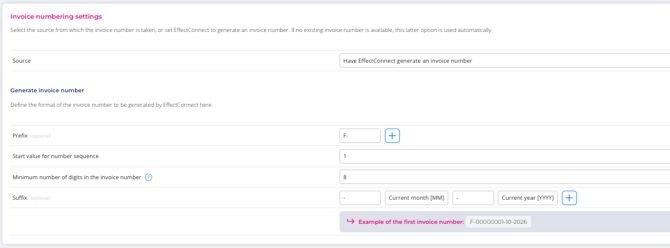
If you choose Have EffectConnect generate the invoice number, or for your fallback settings, you set:
- Prefix: this goes at the start of the invoice number. You can enter fixed text, the current year [YYYY] or the current month [MM]. A combination of these is also possible.
- Start value of the number sequence: the number of the first invoice. Every next invoice counts up from that number.
- Minimum number of digits in the invoice number: the number of fixed digits. If you enter start value 1 and a minimum of 8 digits, the first number is 00000001.
- Suffix: this goes at the end of the invoice number. Here too, you can use fixed text, the year [YYYY] or the month [MM], or a combination.
As soon as you fill this in, you immediately see an example of the invoice number.
How do I create an invoice configuration rule?
You can create multiple rules. They have a priority (#1, #2, and so on) that you change by dragging a rule. EffectConnect applies the first rule that matches the order. You can edit, duplicate and delete rules.
- Go to Orders > Invoices > Invoice configuration rules.
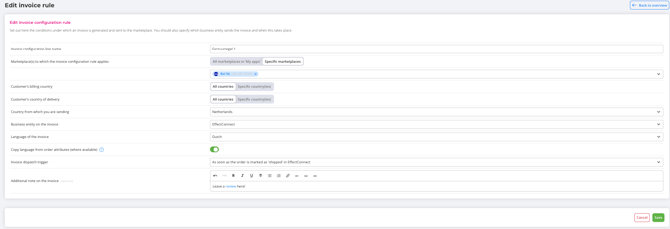
- Create a new rule and fill in:
- Name of the invoice configuration rule: for your own overview.
- Marketplace(s) the rule applies to: all marketplaces in your account or specific marketplaces.
- Customer billing country: the country from the billing address of the ordering customer. Choose all countries or specific countries.
- Customer shipping address country: the country from the shipping address of the ordering customer. Choose all countries or specific countries.
- Country you ship from: the country from which you send your items.
- Company entity on invoice: the entity you created under Company entities.
- Invoice language: the language in which the invoice is created.
- Take language from order attributes (if available): with some marketplaces, the order also includes the customer's language. If you turn this setting on, EffectConnect uses that language.
- Invoice sending moment: the moment at which the invoice is created (see below).
- Extra note on invoice: a fixed text that appears on the invoice. You can use it, for example, to ask for a review. You can also include a URL or put a link on a word.
- Save the rule.
ℹ️ Good to know: the language of the order is only used if that language is available for the invoice. We are expanding the available invoice languages step by step. If you're missing a language, please contact our support team.
When is the invoice created and sent?
With Invoice sending moment, you set when the invoice is created:
- as soon as the order has been created in EffectConnect
- as soon as the order in EffectConnect receives an order number from your own system
- as soon as the order in EffectConnect receives an invoice number from your own system
- as soon as the order in EffectConnect gets the status 'shipped'
- manually
With bol, you can only send an invoice to bol after the order has been shipped. An order can still be cancelled, and then you would have sent an invoice that wasn't needed.
An invoice can only be created once per order.
If the contents or delivery address of an order are updated, the details on the invoice will change accordingly. However, if you amend an invoice that has already been sent to a marketplace, the invoice itself will update, but it cannot be resent to the marketplace.
How does the invoice reach bol?
To send invoices back to bol, EffectConnect uses a separate process: Invoice Export. Like the other processes, you can turn it on or off in the synchronizations tab. The default interval is 1 hour. The process also appears in the timeline on the order detail page.
ℹ️ Automatically sending invoices back only works for bol at the moment. Other marketplaces aren't supported for this yet, but we plan to expand to other marketplaces soon.
Where do I find my generated invoices?
Under Orders > Invoices > Generated invoices, you see the invoice number, invoice date, order number (with a link to the order), total amount, channel and company entity name for each invoice. You can search and filter on invoice number, invoice date, order number, channel and company entity. With the buttons next to each invoice, you view or download the invoice.
ℹ️ Good to know: invoices can't be retrieved via the API yet.
FAQ
I don't see the Invoices module or can't open it. The Invoices module probably isn't active on your subscription. Please contact our support team.
There's no VAT on my invoices. Most likely, no VAT rule has been set up in the VAT module, or there's no rule that matches the order. The Invoices module uses those rules to determine the VAT. The VAT module also works for the invoices, not only for a Shopify connection.
The buttons to view or download an invoice are greyed out. The personal data has then been removed from the order, and the invoice can no longer be built. An invoice isn't stored as a PDF and therefore can't be restored.
The invoice didn't arrive at bol. Check the following:
- Has the invoice been created? That depends on the sending moment in your rule and on whether there's a rule that matches the marketplace, the countries and the country you ship from.
- Has the order been shipped at bol, and is the shipment from the last 48 hours?
- Is the Invoice Export process turned on? Check the log and, if needed, start the process manually.
- Is there a failed upload in the log? After 5 attempts, EffectConnect stops trying again.
Still in need of assistance? Please feel free to reach out to the Support Team and we'll be happy to assist!
📩 Email us at support@effectconnect.com
💬 Contact us via chat or give us a quick call