![logo-effectconnect-liggend-2021.png]](https://www.effectconnect.com/hs-fs/hubfs/Logo%20EffectConnect/logo-effectconnect-liggend-2021.png?height=24&name=logo-effectconnect-liggend-2021.png)
Go to
What are order tags?
With order tags you automatically add tags to orders in EffectConnect, based on conditions you set yourself. A tag works like a label: it shows at a glance which orders need different handling, and you can use it to set up follow-up actions.
Why use order tags?
- Hold orders for a check before export. Do some orders need extra attention first, for example because you have to decide which stock location to ship from or is tax exempt? Give these orders a tag and add it to a queue rule. The orders are then not exported to your webshop until you have checked them.
- Control handling in your own system. If you use a custom API connection or a system that reads tags, you can process orders differently based on a tag, for example through a different warehouse or carrier.
- Spot exceptions. Tag orders above a certain amount, international orders or business orders. They stand out right away in the order overview, so you can check them more closely.
- Find orders quickly. Tags make it easy to filter groups of orders, such as all orders from a promotion or from one marketplace.
Never needed tags before? No problem. You probably don’t need them.
How to create an order tag
- Go to Orders > Order tags.
- Click Create new order tag.
- Choose a name for the tag
- Add condition rule to define the conditions an order must meet to receive the tag.
- Save the tag.
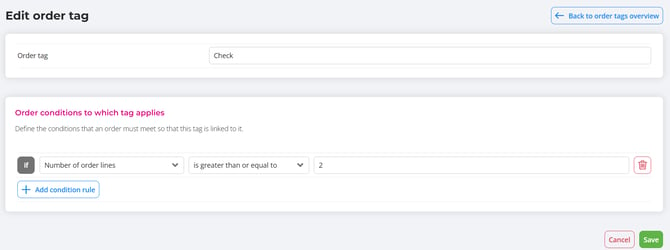
Above example can be used if you need to ship from different stock locations.
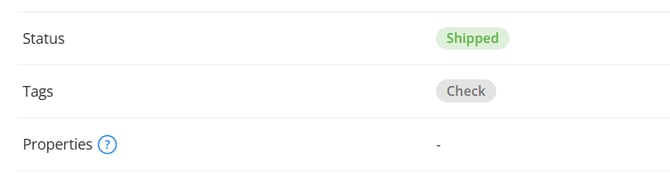
The order tags shows in the summary of an order:
 Changes to your rules only apply to new orders. Orders already in EffectConnect are not updated.
Questions about order tags? Please contact us. We’re happy to help.