![logo-effectconnect-liggend-2021.png]](https://www.effectconnect.com/hs-fs/hubfs/Logo%20EffectConnect/logo-effectconnect-liggend-2021.png?height=24&name=logo-effectconnect-liggend-2021.png)
With categories, you organise your catalog. Each catalog in which you create products yourself has its own category tree. The tree always starts empty: you come up with your own structure. There are no predefined trees available, such as those of GS1 or Google.
A product can belong to multiple categories. A root category isn't required and you can have multiple root categories.
You build the tree in two places: in Category management, or directly from a product while creating or editing it (see Linking categories to a product).
Go to:
How to start
- Go to Catalog > Product management > Categories.
- Do you have more than one catalog in which you create products? Then first choose the catalog. Each catalog has its own tree. If you have one catalog, you go straight to the tree.
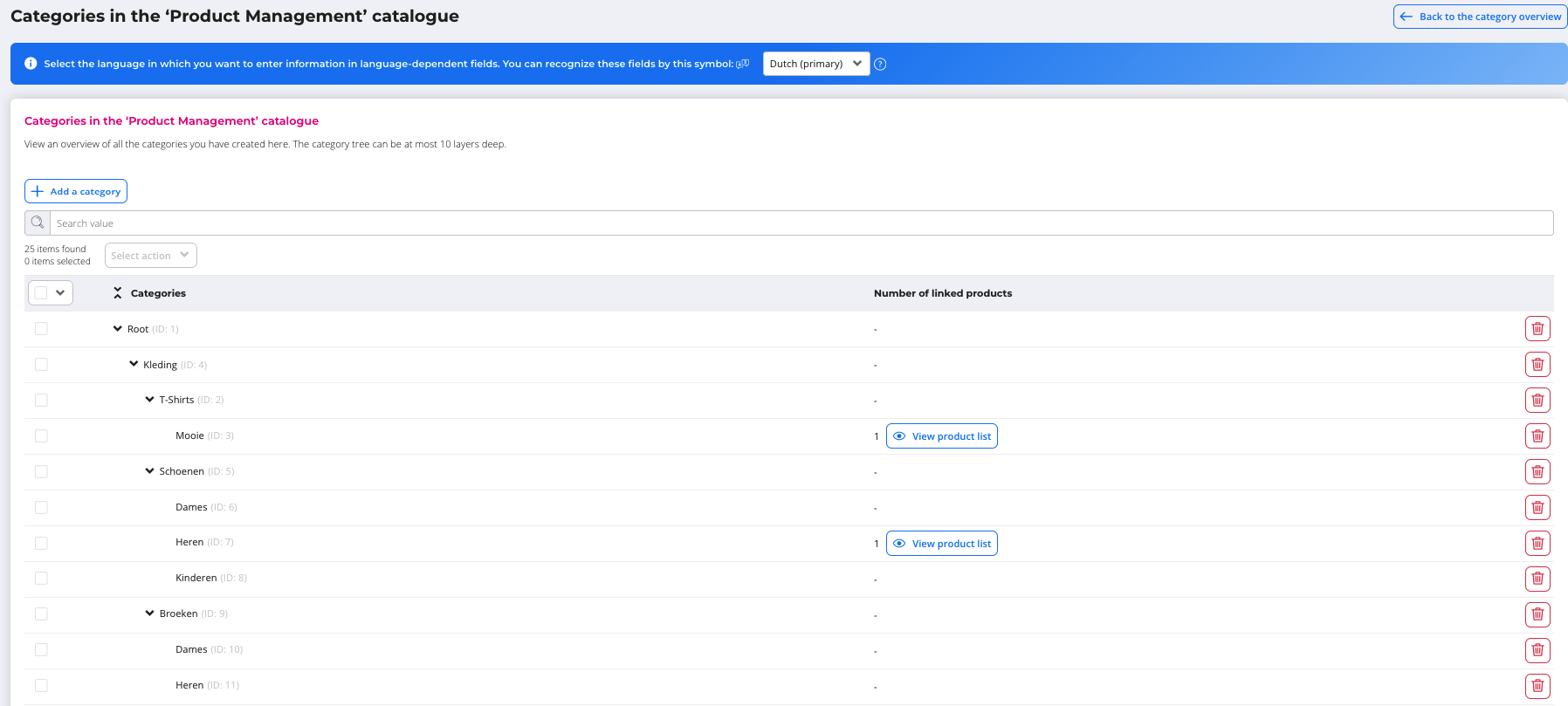
In the tree, you drag categories to another position, expand and collapse levels, and see how many products are linked to each category. This works the same way as the category tree in the Feed Manager.
Managing the category tree
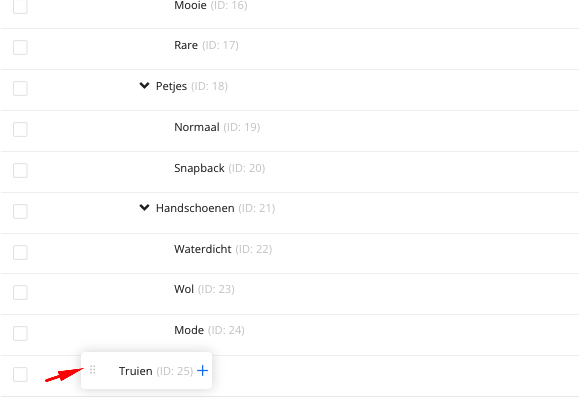
Adding a category. Click + Add category. A new row appears at the bottom of the tree. Give the category a name and drag it to the position you want in the tree.
Renaming a category. Click the name of the category and change the name.
Moving a category. Drag the category to another position. This is how you build the hierarchy.
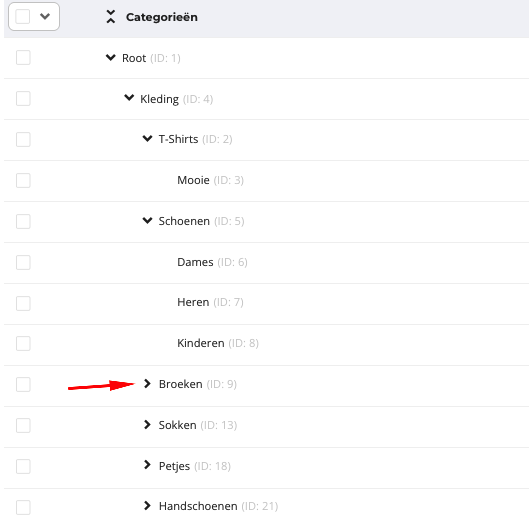
Expanding and collapsing. Expand or collapse the categories per level.
Viewing products per category. A column shows the number of products per category.
Deleting categories. Tick one or more categories. In the dropdown that appears, choose Delete.
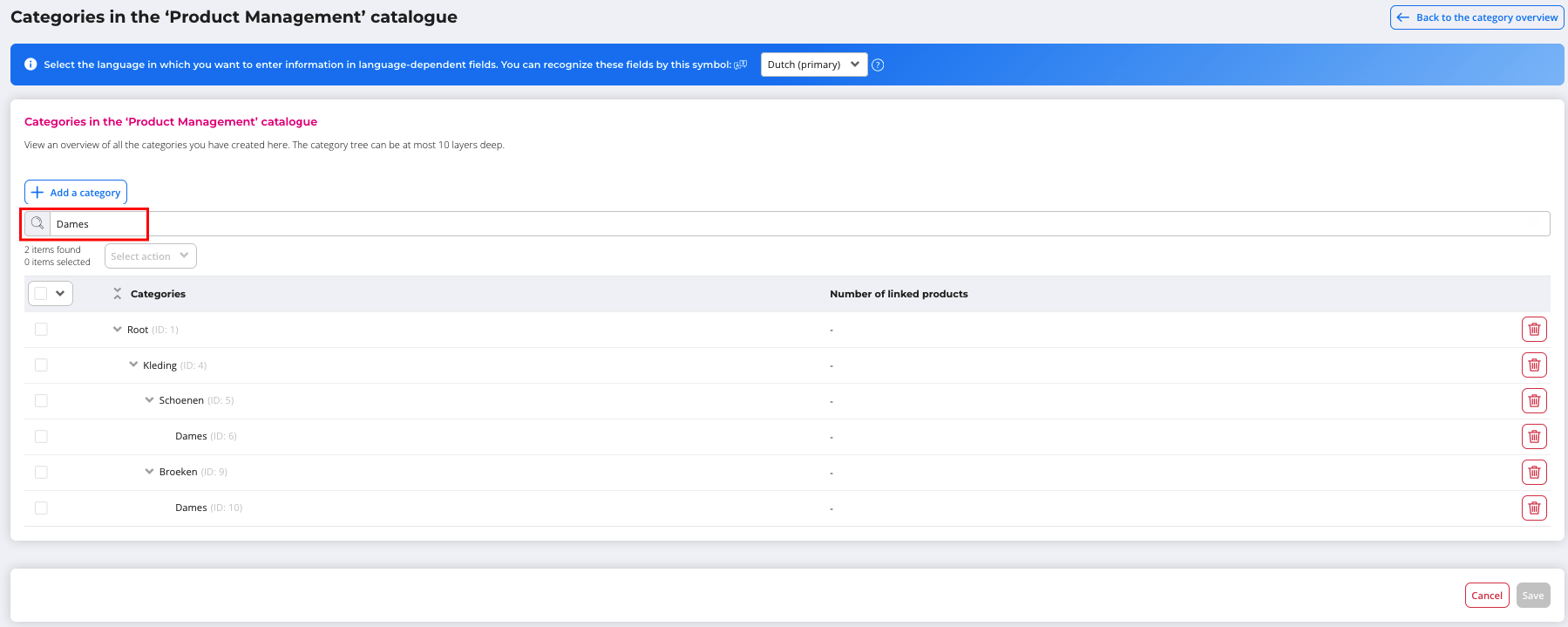
Searching. Use the search bar to find a category in the tree. Dragging is disabled while you search.
Linking categories to a product
On the Product properties tab of a product, you choose the categories. This applies to every product type.
- Open the product via Catalog > Product management > Products and go to the Product properties tab.
- Choose the categories in the tree. If you click a parent category, all subcategories are selected or deselected with it. A checkmark means everything below it is selected, a blue square means only part of it is selected, and an empty box means nothing below it is selected.
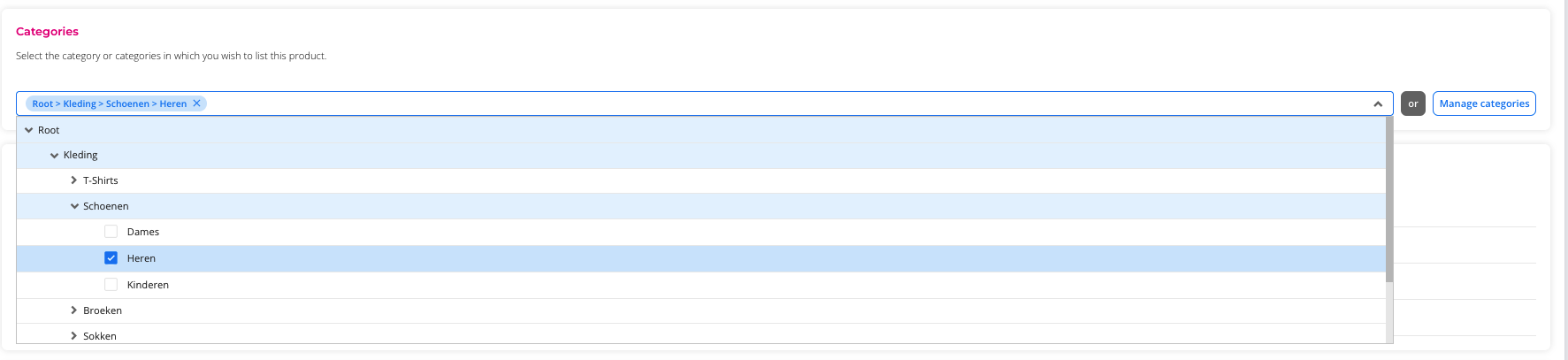
- Is the category you need missing? Then create it directly from the product.

- Save.
ℹ️ Good to know: for a product variant, the categories come from the main product. You can't change them on the variant. Make changes on the main product.
In case you have any further queries, you can always contact us!
 Email us at support@effectconnect.com
 Contact us via chat or give us a quick call