![logo-effectconnect-liggend-2021.png]](https://www.effectconnect.com/hs-fs/hubfs/Logo%20EffectConnect/logo-effectconnect-liggend-2021.png?height=24&name=logo-effectconnect-liggend-2021.png)
With the Product Management module, you create products yourself in EffectConnect and manage them there. You can create simple products, main products, product variants and bundles, and enrich them with attributes, categories and media.
Products you create here work just like any other product in EffectConnect afterwards: you can use them in mapping, product selections, the Repricer, the Fulfilment manager, the Feed Manager and your channels.
The module is a good fit if:
- you don't have your own source system, or you prefer to manage your products centrally in EffectConnect;
- you currently use a separate product management system and want to replace it;
- you sell bundles. In this module, bundles are regular products, so you no longer need to create them separately for each channel.
Go to:
- How does Product Management work?
- Which product types are there?
- Attributes, attribute groups and attribute templates
- Categories
- Media
- Stock via the API
How does Product Management work?
Your own catalog
Product Management works with catalogs. In Catalog Management, you create a catalog with the purpose of creating products yourself. You can have more than one of these catalogs.
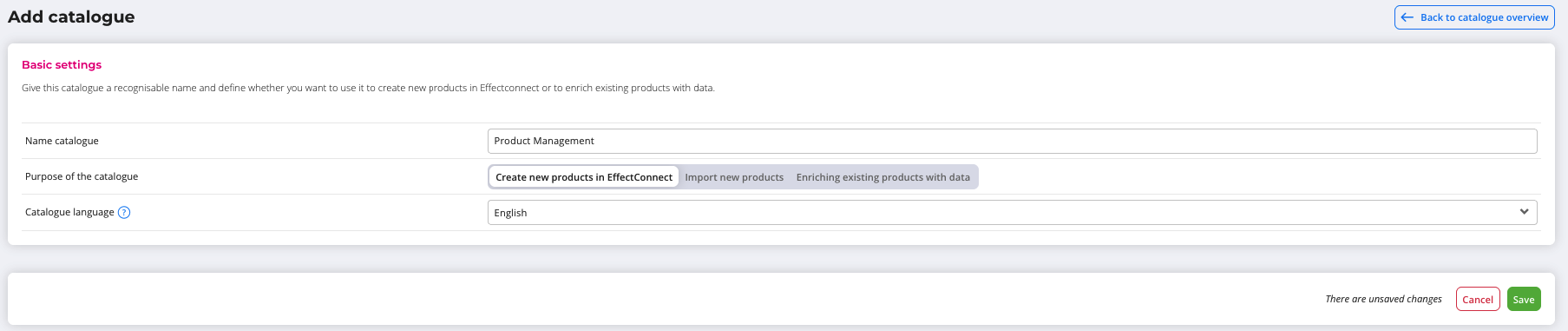
Products are unique within a catalog, not necessarily across your entire account. This means the same EAN can exist both in a Product Management catalog and in the catalog of a connected webshop.
🔗 See also: would you like to know more about working with multiple catalogs? Read the article What is Catalog Management and how do I work with multiple catalogs?
Where do you find your products?
A product you create with Product Management is stored separately and then synchronised to your regular catalog in EffectConnect. From there, it takes part in everything you already know: mapping, product selections, the Repricer, the Fulfilment manager, the Feed Manager and your channels.
This means:
- You'll see the product in the regular products overview. On the product detail page, a button in the top right takes you to the edit screen in Product Management.
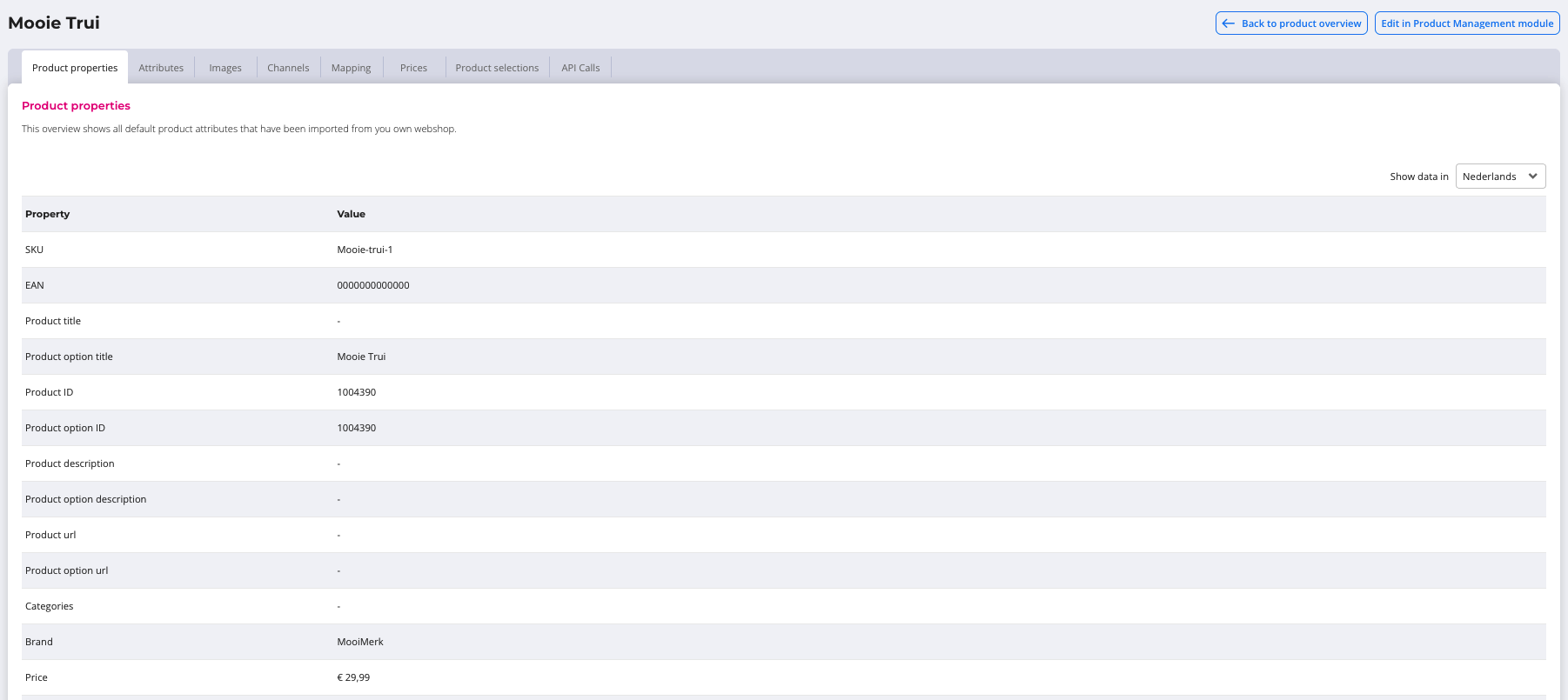
- You make changes in Product Management, not on the regular product detail page.
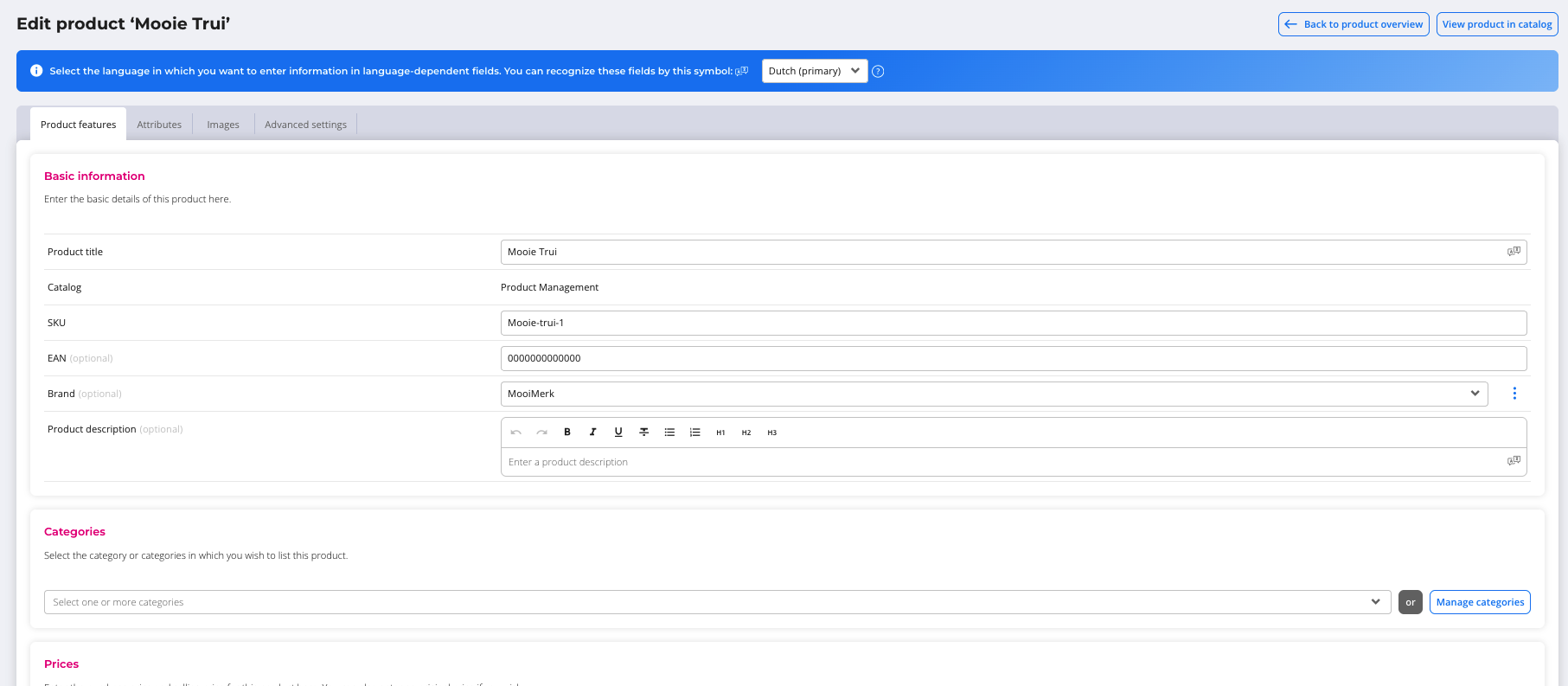
🔗 See also: would you like to know more about the regular product detail page? Read the article Product detail page.
EffectConnect is your source system
Normally, the source system (for example your webshop or ERP) deducts stock when an order comes in. For products from Product Management, EffectConnect itself is the source system, so EffectConnect deducts the stock.
Stock changes, whether they come from orders, are made manually or are sent via the API, show up in the mutation log under stock.
Menu
Under Catalog > Product management, you'll find:
- Products
- Attributes
- Attribute groups
- Attribute templates
- Categories
- Media
Do you have more than one Product Management catalog? Then the overviews of products, attributes, attribute groups and attribute templates show a column with the catalog name. When you choose New, you first pick the catalog you want to create something in. For Categories, you pick the catalog first, because each catalog has its own category tree. Media is a single library shared across all your Product Management catalogs.
Which product types are there?
When you create a product, you first choose the product type.
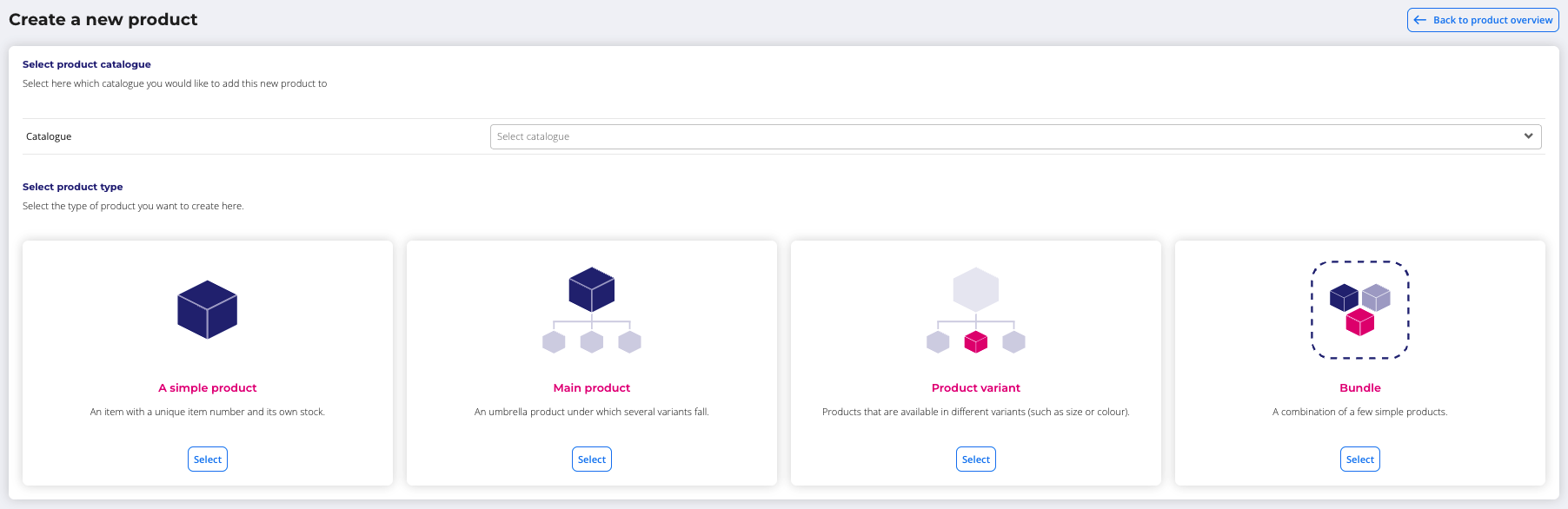
| Type | What it is | Own EAN | Own stock | Example |
|---|---|---|---|---|
| Simple product | Standalone product without options | Yes | Yes | One size T-shirt |
| Main product | Overarching product that groups variants | No | No | T-shirt (family) |
| Product variant | Version of a main product | Yes | Yes | T-shirt Red M |
| Bundle | Composite product made of 2 or more products | Yes | Yes, see the explanation under Bundle | 1 bottle of wine with 2 glasses |
Simple product
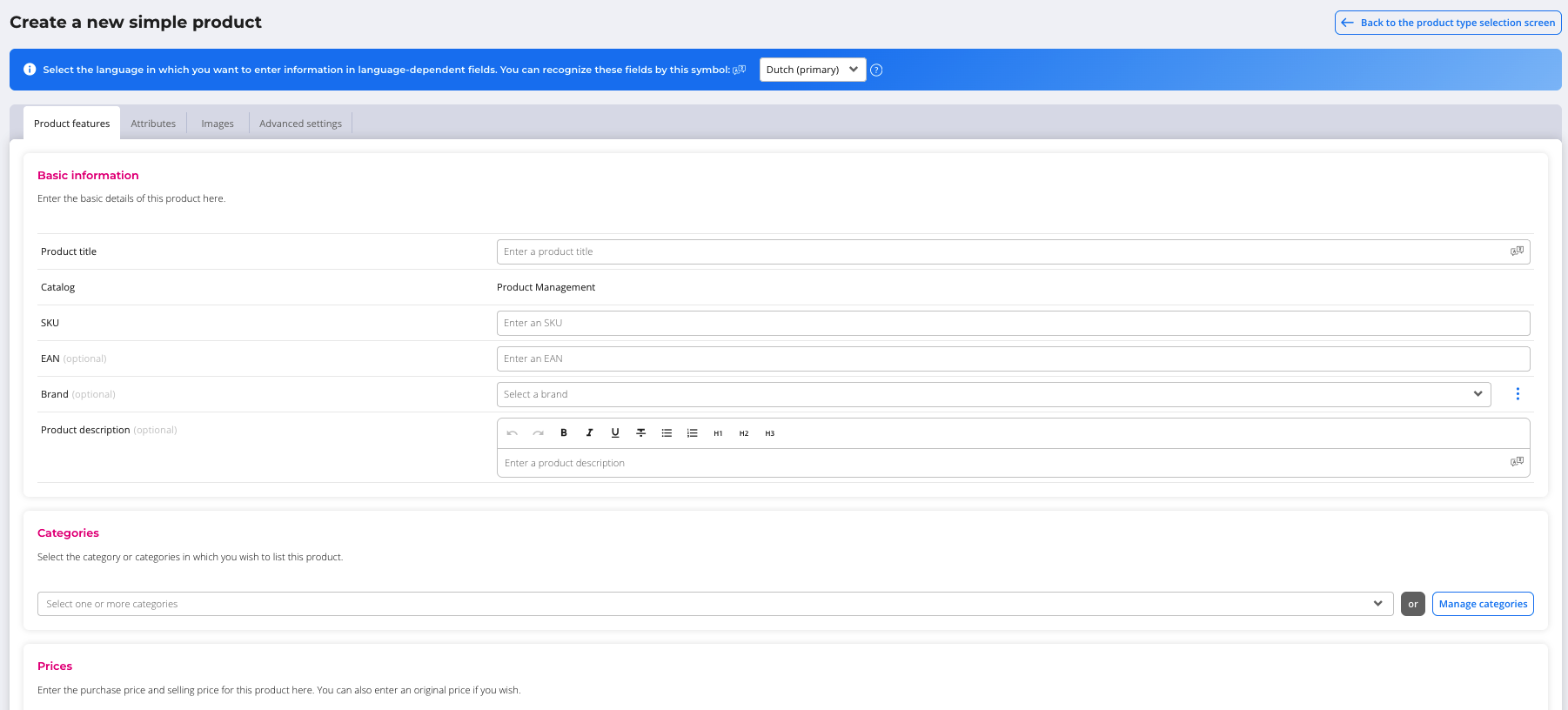
The edit screen of a simple product has these tabs:
- Product properties: basic information, categories, prices, stock and delivery time
- Attributes
- Images
- Advanced settings
If you have unsaved changes on a tab, you'll see an asterisk in the tab title.
ℹ️ Good to know: these fields are required when you save: product title, SKU, purchase price (can be 0), sales price (can be 0) and stock.
ℹ️ Good to know: in a multilingual catalog, a blue language bar appears at the top. Use it to fill in the product per language.
Main product
A main product has the same tabs as a simple product, but without EAN and without stock. There is an extra tab for product variants.
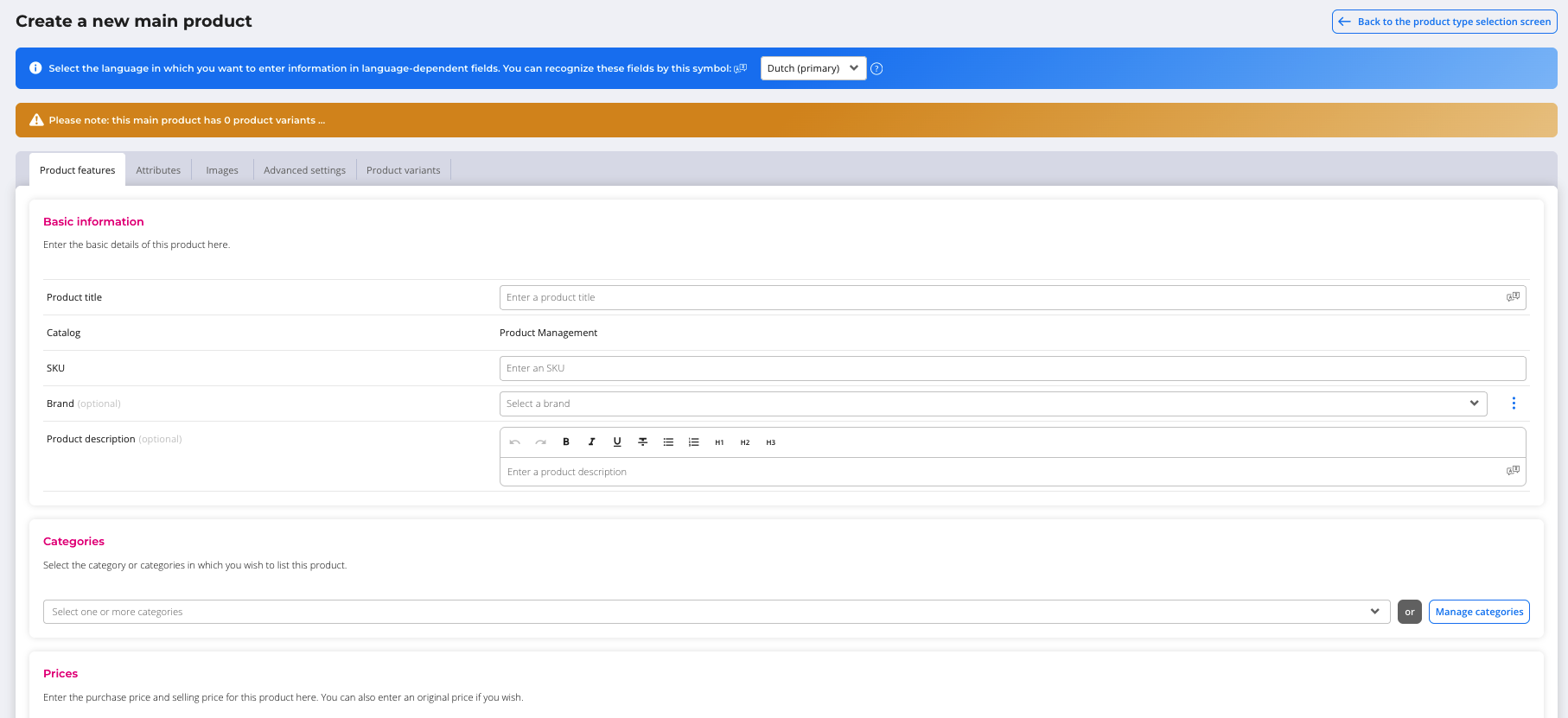
You manage shared information, such as brand, material and description, centrally here. Images on the main product end up in the catalog at product level.
ℹ️ Good to know: a main product only ends up in your regular EffectConnect catalog once it has at least one variant. Without variants, Product Management shows an orange warning.
Product variant
A variant always belongs to a main product and has its own SKU, EAN, price and stock. You can create variants in two ways.
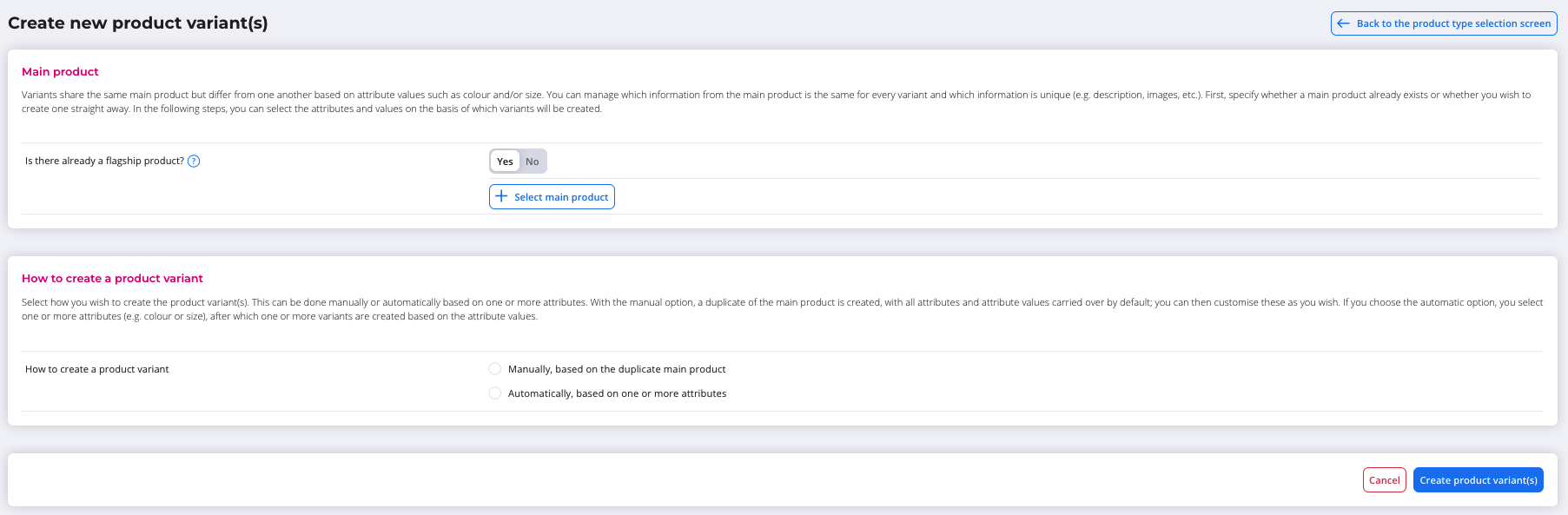
Manually. The screen looks like that of a simple product. Brand and categories come from the main product and can't be changed on the variant. Other fields are copied from the main product by default, but you can turn this off per field. Title, SKU and description are not linked to the main product by default.
Attributes are also copied by default (inherit attributes from main product). As long as this option is on, you can't remove attributes from the variant.
Automatically. In three steps, you first choose the attributes (for example colour and size), then the values, and then you see a summary of all combinations. Choose two colours and two sizes, and you get 2 × 2 = 4 variants. Name and SKU are suggested and you can adjust them before confirming.
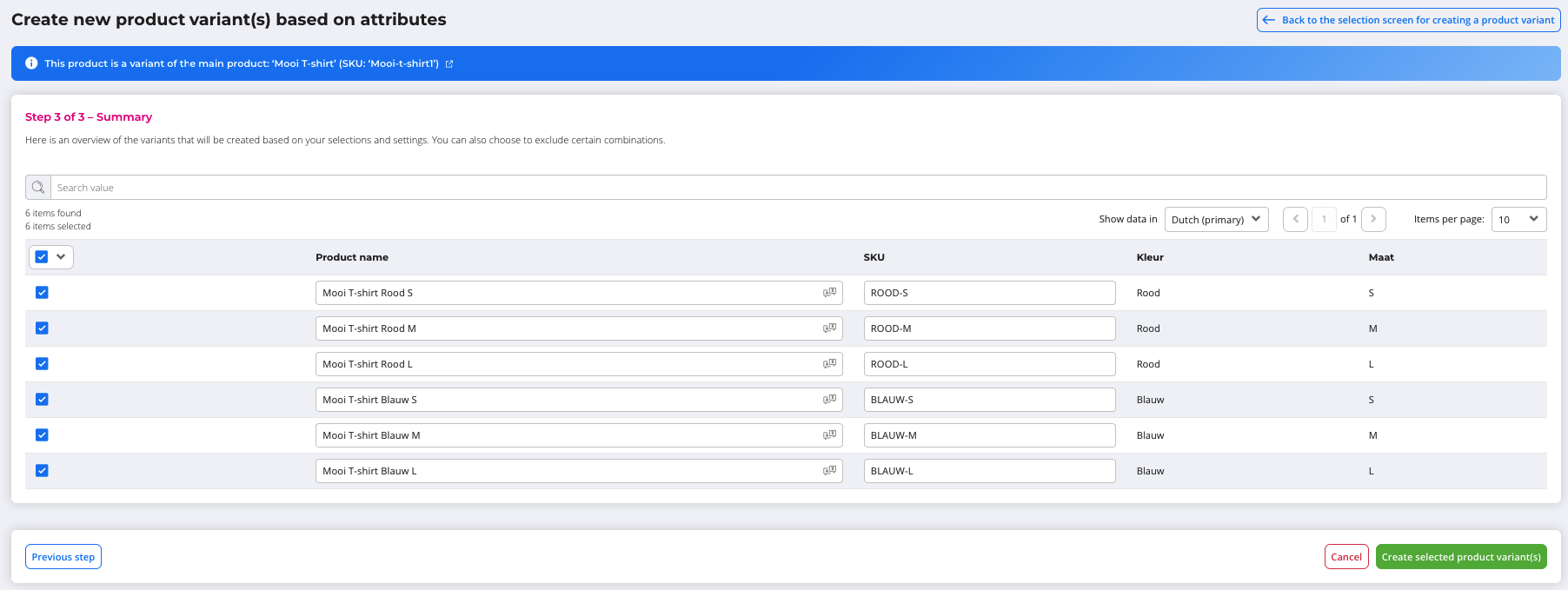
ℹ️ Good to know: when creating variants automatically, you can only use attributes from the Product Management catalog itself, not from other sources in EffectConnect.
ℹ️ Good to know: with this method, you can create a maximum of 250 variants. If a combination already exists on the main product, you'll get a warning, but you can still create the variant again.
ℹ️ Good to know: if creating one variant fails (for example because the SKU already exists), the other variants are still created. Afterwards, you can see which variants weren't created and why.
Bundle
A bundle is a regular product with its own SKU and EAN, made up of 2 or more underlying products (simple products or variants). Because the bundle ends up in your regular catalog as a normal product, it works with mapping, the Repricer, product selections and the Fulfilment manager. You no longer need to create it separately for each channel.
Which catalog. All products in a bundle come from one catalog. This can also be a catalog that isn't a Product Management catalog, for example the products of a connected webshop.
Primary product. You choose a primary product. It determines the default values for things like category, delivery time and attributes. If your bundle consists of products that don't come from Product Management, this works in a more limited way: the bundle can't take anything over from a main product.
SKU. You fill this in yourself.
Purchase price. Calculated automatically as the sum of the purchase prices of the underlying products.
Stock. How the stock of the bundle is determined, and whether stock is deducted, depends on the stock setting and on whether the products come from Product Management:
| Stock setting | Products from Product Management: what is deducted when an order comes in | Other products: what is deducted when an order comes in |
|---|---|---|
| Based on attribute | The underlying products | Nothing, the source system takes care of this |
| Manual value | The bundle itself | The bundle itself |
If you choose the strategy based on a different attribute, you also choose a language, because the value is read from that language.
Orders. With the setting Split bundle in order into individual underlying products, you decide whether the bundle is split into separate products in the order. Shipping and transaction costs are then divided based on quantity, and the commission based on quantity × price.
Attributes. You choose whether the attributes of the primary product are inherited, or you link a template or individual attributes yourself. For numeric attributes, you can also use the lowest value or the sum of the underlying products.
ℹ️ Good to know: a bundle has no revisions. If you change the contents of an existing bundle (different products or different quantities), there may be a period in which the old version is still being ordered while EffectConnect assumes the new one. If the products in a bundle change, we therefore recommend creating a new bundle with a new EAN.
Attributes, attribute groups and attribute templates
Attributes
An attribute is a property of a product, such as colour, size or material. You can use these types:
- Dropdown list
- Text
- Text editor (HTML)
- Numeric (whole number or decimal)
- Yes/No
- URL
- Date
- Date and time
- Document
- Image
- EAN (with a check while you fill it in)
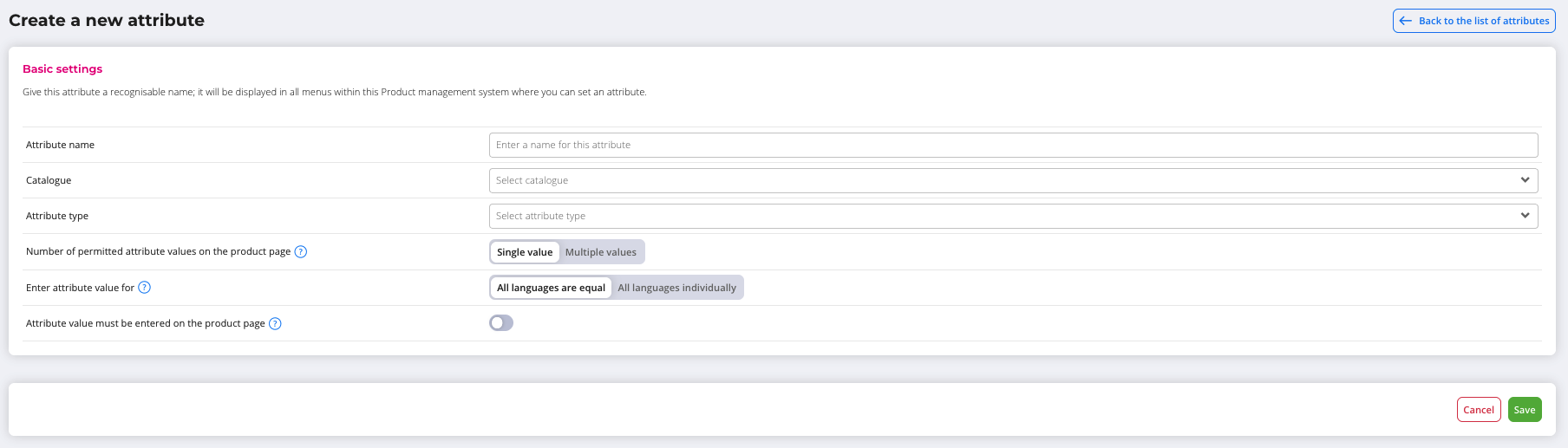
For each attribute, you set whether it can have one or more values (Yes/No can only have one value), whether a value is required, and whether the value is filled in per language or is the same for all languages.
ℹ️ Good to know: if you unlink an attribute from a group or template, EffectConnect warns you how many products have a value for that attribute. Those values will be lost.
Attribute groups
An attribute group bundles attributes that you always fill in together, for example the group "Dimensions" with length, width and height. You can link a group to any product type. A group contains a maximum of 50 attributes.
Attribute templates
A template combines individual attributes and attribute groups for a kind of product, for example a template "Trousers" with the groups "Colour and design" and "Fit and sizing". In a template, the individual attributes are listed at the top and the groups below them.
Linking attributes to a product
On the Attributes tab of a product, you link attributes either via a template or via a manual selection of attributes and groups. A combination of both isn't possible.
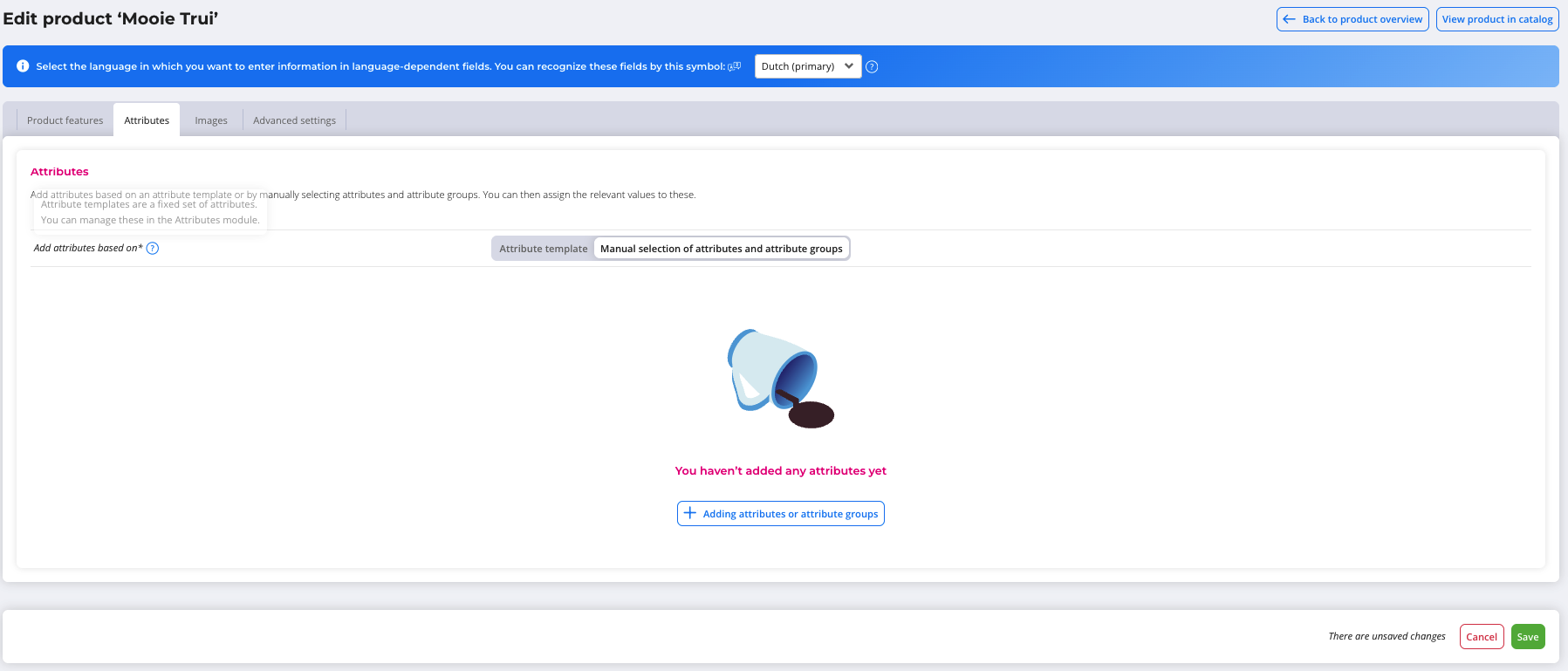
If you switch templates, the values you already filled in are kept. If you switch back, the values of the fields that had disappeared are back. If you don't save, the switch is undone.
Categories
In Category management, you build a category tree by dragging, expanding and collapsing. You can also see how many products are in each category. A root category isn't required and you can have multiple root categories. A product can belong to multiple categories.
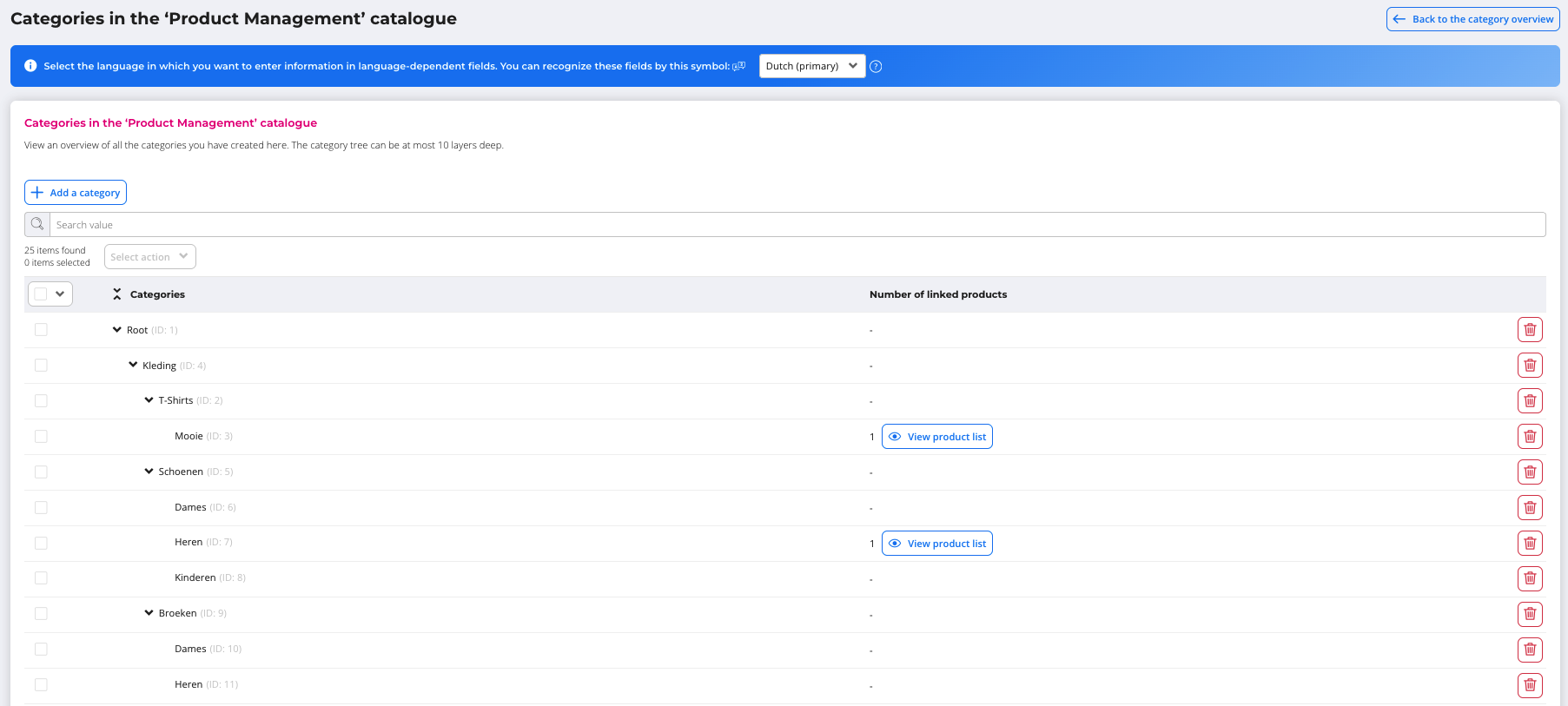
You can also create new categories directly from a product.

Media
Media management
Media management is the central library for all media you link to products. You can upload, view, download, replace and delete files, and you can see which products a file is linked to. Tags and a description make filtering easier.
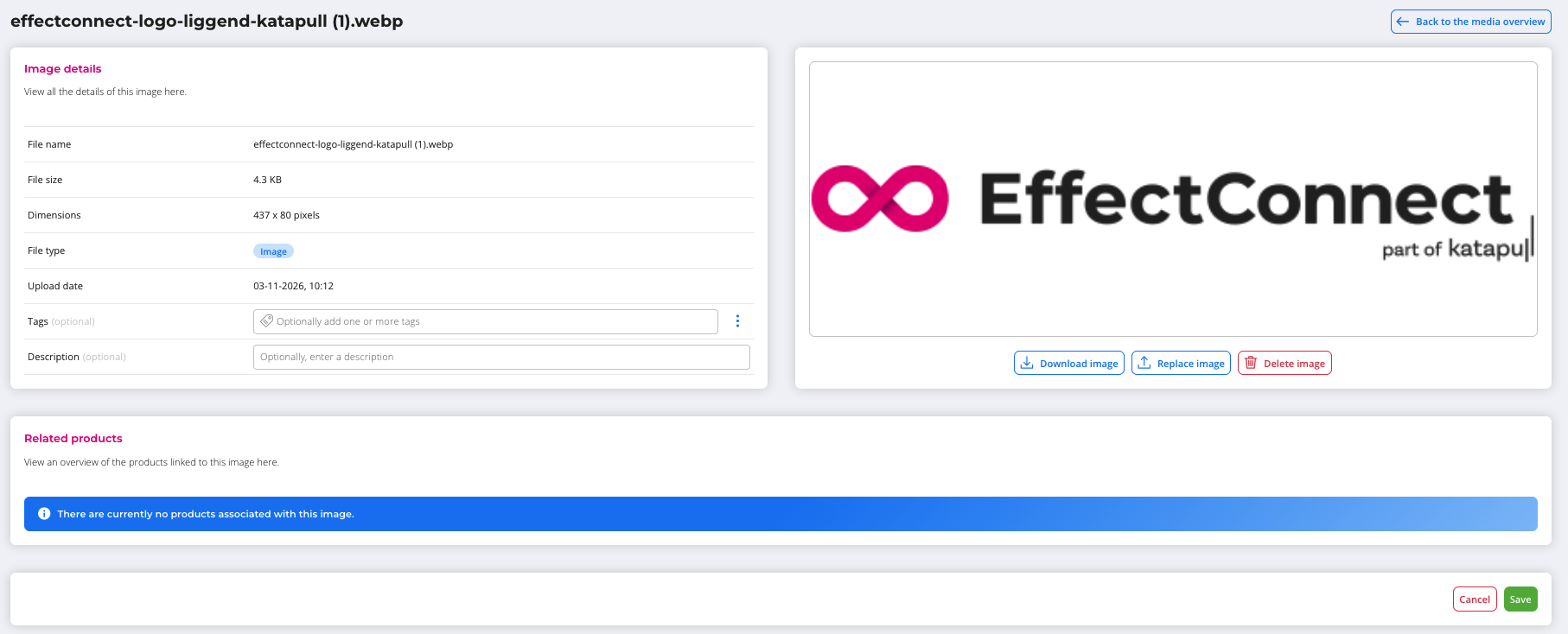
ℹ️ Good to know: replacing or deleting in Media management applies immediately to all linked products. The delete pop-up shows which products (and in which catalog) will be affected.
| Kind | Supported |
|---|---|
| Images | jpg, jpeg, png, gif, webp, bmp, tif, tiff, avif, heic |
| Documents | pdf, doc, docx, xls, xlsx, ppt, pptx, txt, csv, rtf, odt, ods |
| Not supported | SVG and video |
A file is recognised by its file extension. Each file can be a maximum of 50 MB.
Images on a product
On the Images tab, you upload new images or choose existing ones from Media management. A new upload automatically ends up in Media management as well. You change the order by dragging.
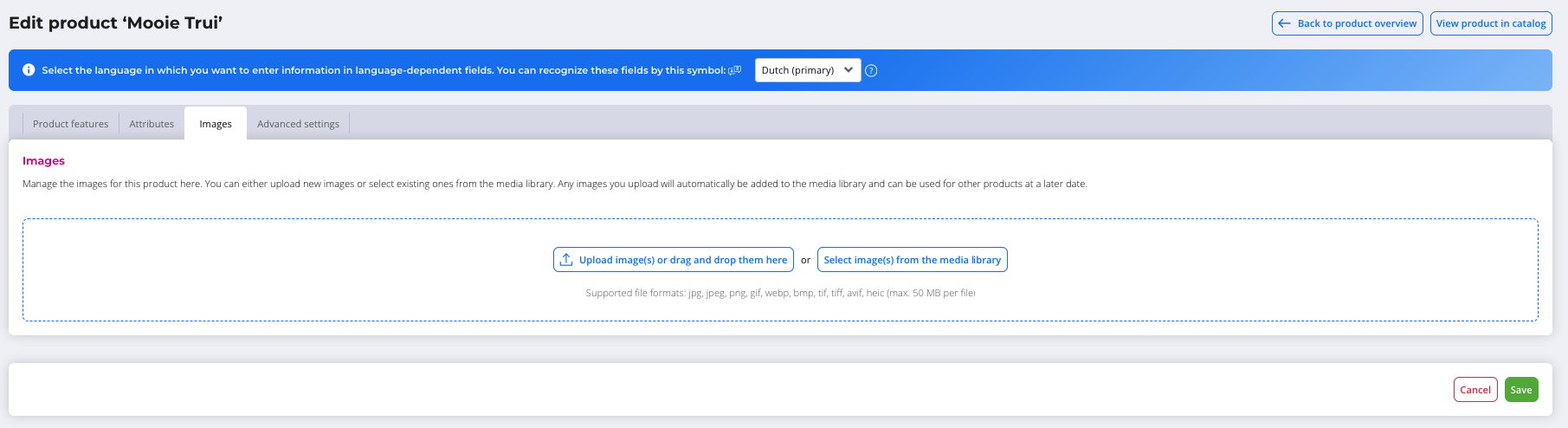
Unlinking an image from a product doesn't delete it from Media management.
ℹ️ Good to know: for a bundle with products that don't come from Product Management, the images of those products are regular URLs. They are therefore not in Media management.
Storage limit
You have 200 GB of storage, plus any extra credits. If you reach your limit, new uploads are blocked. You'll get a notification and can buy extra storage credits.
Stock via the API
For products from Product Management, you can also retrieve and adjust stock via the API. You identify the product with the product ID from Product Management, the EAN or the SKU. A stock change can be a mutation (for example -1 or +5) or an overwrite (for example exactly 50).
In case you have any further queries, you can always contact us!
 Email us at support@effectconnect.com
 Contact us via chat or give us a quick call