![logo-effectconnect-liggend-2021.png]](https://www.effectconnect.com/hs-fs/hubfs/Logo%20EffectConnect/logo-effectconnect-liggend-2021.png?height=24&name=logo-effectconnect-liggend-2021.png)
Go to
- About the connection
- How to set up the connection
- Compatible WooCommerce plugins
- Multiple languages in WooCommerce
- Sending shipment details to EffectConnect
- Synchronization intervals
- FAQ
About the connection
The connection with your WooCommerce webshop is set up using a plugin that you install in your WooCommerce environment. Once the plugin is installed, you set up your EffectConnect account from there.
 Please contact our customer success team for the latest version of the plugin and the onboarding process.
How to set up the connection
- Contact our customer success department to receive the latest plugin for your WooCommerce system. Our colleagues will determine if an installation is possible. Also, we will create an EffectConnect account for you.
- Once you installed the plugin, you need to create custom API keys in your EffectConnect account, to read more about these keys, read this article.
- When you created custom API keys, you can fill these in the configuration of the EffectConnect plugin in Prestashop.
- Go to WooCommerce > Configuration in the left menu of WooCommerce. You'll see a tab called EffectConnect settings. On this page, you can start the installation.
- Optionally, you can configure the plugin in WooCommerce to suit your needs. In the configuration, you specify which fields should be used for EAN codes, delivery times, and more.
Compatible WooCommerce plugins
Our plugin has been made compatible with the WooCommerce plugins below. We can't guarantee compatibility with any other plugins.
-
Perfect Brands
This add-on lets you link more than one brand to a product. We only load the first brand into the brand field, and load the full list of possible brands as a custom attribute. -
Product Code
This module adds the option to enter EAN codes for products with multiple variants. -
EAN For WooCommerce
This module adds the option to enter EAN codes for your products. -
WordPress Multilingual (WPML)
In the connection settings, the Export WPML languages setting lets you choose whether WPML should be used when exporting your product catalogue. If this setting is disabled, or if the WPML plugin isn't installed, only one language is exported by default. -
Polylang
Our plugin is compatible with Polylang For WooCommerce and Polylang PRO. Polylang lets you build a multilingual site, with no limit on the number of languages.ℹ️ We currently only support Polylang languages whose country code conforms to the ISO 639-1 standard. This is also Polylang's own recommendation.
Multiple languages in WooCommerce
There are several plugins and solutions available for working with multiple languages in WooCommerce. WPML and Polylang are both supported by our plugin, see the section above for the settings involved.
So multilingualism is possible in EffectConnect, but not in every situation. If you're using a different solution or a non-standard setup, please contact us to discuss the options.
Sending shipment details to EffectConnect
WooCommerce does not include a standard field for shipment information, there fore we retrieve the tracking information from the Order Notes in WooCommerce. This provides a simple and reliable way to provide shipment updates.
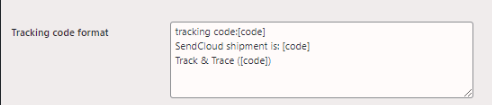
Specify the tracking code format in de the EffectConnect plugin settings, to look for in order notes. Use [code] as a placeholder for the tracking code. Use multiple lines to support multiple formats.
For example: "Tracking code: [code]".
- tracking code:[code]
- or Sendcloud shipment is: [code]
- or Track & Trace ([code])
Once tracking information is added in the Order Notes, an update is sent to EffectConnect. We extract the tracking code , place it in the order, and send it on to the marketplace.
About the synchronization intervals
All information about our synchronizations can be found in this article.
FAQ
Where can I find the logs for the EffectConnect plugin in Wordpress/WooCommerce?
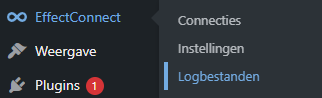
You can find the logs in the left-hand menu of WordPress. Go to ‘EffectConnect’ and then ‘Logbestanden’ (log files).
On the next page, you can view all synchronization logs between EffectConnect and your webshop, including catalog, stock, and order synchronizations. You can also filter the logs by synchronization type.