![logo-effectconnect-liggend-2021.png]](https://www.effectconnect.com/hs-fs/hubfs/Logo%20EffectConnect/logo-effectconnect-liggend-2021.png?height=24&name=logo-effectconnect-liggend-2021.png)
Without the right setup, your offers will quickly get lost in the crowd. Think of incorrect EANs, incomplete content or failed variant structures: it results in lost revenue and frustration!
In this article, we share smart tips & tricks to set up your offers, bundles, content, and variants efficiently.
You’ll learn step by step:
-
How to map content efficiently with automatic error validation.
-
How to use product categories in content mapping efficiently.
- How to find and solve listing restrictions
-
How to correctly configure parent-child variant relationships.
With this approach, your products go live faster — and stay visible.
Creating Offers on Amazon
Do you want to create an offer on Amazon and you already have an ASIN available? Then you can easily link it to your product in EffectConnect. This makes setting up offers faster and simpler.
 Please note: if the content is still missing, Amazon cannot create the offer. It is therefore important that the corresponding content is already available in the Amazon catalogue.
Content can be submitted via the Content Mapping module in EffectConnect.
Here you can map content per marketplace according to Amazon’s requirements. Once the content is approved and processed by Amazon, the offer will be created automatically.
Bundles on Amazon: EAN is mandatory
Do you sell bundles on Amazon? Since the introduction of the Selling Partner API (SP-API), Amazon now requires a valid EAN for every bundle.
Where it used to be optional, a bundle without an EAN will no longer be accepted.
Make sure each bundle has a unique and valid EAN. You can configure this easily in EffectConnect to ensure the bundle is processed and published correctly.
💡 Tip: No EAN available for your bundle? Apply for a unique bundle EAN through an official organization like GS1, or register an internal EAN if it meets Amazon’s requirements.
Mapping Content for Amazon: Step by Step
Providing content on Amazon can be challenging. Amazon has strict requirements regarding the completeness of content: many attributes must be filled in before a product is accepted.
To simplify the process, EffectConnect provides automatic validation. After each content synchronization, Amazon’s validation schema is called. Based on the feedback, you can see per mapping rule which attributes are required or incomplete.
This automatic check helps you quickly understand what Amazon expects and prevents you from getting stuck while mapping.
Recommemded workflow:
-
Start with one mapping rule
-
Review the error messages after synchronization
-
Adjust your mapping rule based on the feedback
-
Expand your base mapping rule to speed up the rest
💡 Tip: Error messages contain attribute references. You can find these in EffectConnect by clicking the attribute and selecting 'Information from marketplace'. These messages are technical because they come directly from Amazon. Need help? Our support team is happy to assist.
Mapping content for Amazon: making optimal use of the right product category
When creating a content mapping rule for Amazon, you first need to select a marketplace productcategory. Based on this category, the relevant attributes from the Amazon data model will be loaded into the mapping rule.
The selected product category is only used to retrieve the attributes for the respective categories. The actual Amazon category is linked later within the mapping rule using the ‘category nodes’ attribute.
Do you have multiple product types that fall under the same Amazon category? You can include them in a single mapping rule. This prevents the need to create separate rules for each product type and avoids mapping the same attributes repeatedly. By doing this, your content mapping rules remain clear and you work more efficiently.
💡 Tip: Use the base mapping rule to automatically fill in frequently used attributes in your mapping rules. This saves time, prevents having to link duplicate attributes, and keeps your mapping organized.
Processing Time and Error Messages
Amazon usually takes 24 to 48 hours to process submitted content. Only after all content is approved and no errors remain can an offer be successfully created.
Important: Errors must be marked as approved in EffectConnect. Products with open errors will not be included in synchronization.
If everything looks correct in EffectConnect but your content still doesn’t go live, check Seller Central under Inventory > Product Details. There may be additional errors or conflicts with existing catalog data.
In that case, you can either:
-
Adjust your content based on existing catalog data, or
-
Contact Amazon Seller Support if the catalog data is incorrect
Viewing Listing Restrictions
In EffectConnect, you can see in the logs whether your Amazon listings are blocked and what the reason for the restriction is.
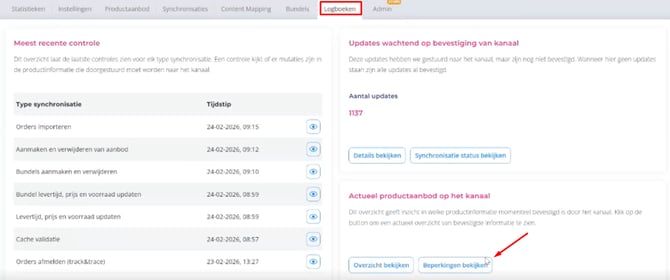
What are restrictions?
Blocks on an ASIN + condition that prevent your product from going live.
Common messages
-
APPROVAL_REQUIRED
Approval is required to create a listing for the specified ASIN. A path forward link will be provided that may allow Selling Partners to remove the restriction.
➡️ You first need approval from Amazon before you are allowed to list this product. For example, in the case of trademark rights or restricted categories. Use the link provided by Amazon to request approval directly. -
ASIN_NOT_FOUND
The specified ASIN does not exist in the requested marketplace.
➡️ The ASIN does not (yet) exist on the marketplace, most likely because content is missing. Create content via the mapping module in EffectConnect. -
NOT_ELIGIBLE
Not eligible to create a listing for the specified ASIN. No path forward link will be provided to remove the restriction.
➡️ You are not allowed to sell this product (or this condition). Check whether the product is allowed at all (legislation, category or brand restrictions). -
LISTING_NOT_FOUND
No match was found in the Amazon catalogue.
➡️ Check your EAN/SKU and make sure the product has been created correctly.
How does it work?
We first retrieve the corresponding ASIN via the EAN or SKU and then check per ASIN and condition whether there are any listing restrictions. The results of this check are stored in a clear overview so you can see at a glance which products are blocked and which can be offered without limitations. All products are made transparent, both products with restrictions and products without restrictions, so you always have a complete view of the status of your assortment.
What do you see in the restriction overview?
Here you will see:
-
Product title
-
EAN / SKU
-
ASIN
-
Condition
-
Last check (date + time)
-
Restriction reason
-
Message from Amazon
-
Any action links
You can also download this overview as a CSV.
Check this overview regularly and resolve restrictions immediately to prevent listings from staying offline unnecessarily.
Creating Variants on Amazon
Setting up variants (parent-child relationships) on Amazon works differently than you might be used to. To avoid errors, it’s important to follow the correct sequence.
Here’s how:
-
Leave parent-child attributes empty in EffectConnect initially
-
First, ensure your content and offer are created and approved on Amazon
-
Create the variation family in Seller Central
-
Once the family is created, Amazon provides a Parent SKU. Use this in EffectConnect to fill in:
-
child_parent_sku_relationship.parent_sku(Parent SKU) -
child_parent_sku_relationship.child_relationship_type(Relationship type) -
parentage_level.value(Parentage level)
-
Ready to Get Your Amazon Products Online?
With correct content, valid EANs, and a structured approach to variants, you’re well prepared to succeed on Amazon.
Questions or need support?
Our Customer Success Team is here to help.
📧 support@effectconnect.com
Together, we’ll make sure your marketplace operations run even smarter.