![logo-effectconnect-liggend-2021.png]](https://www.effectconnect.com/hs-fs/hubfs/Logo%20EffectConnect/logo-effectconnect-liggend-2021.png?height=24&name=logo-effectconnect-liggend-2021.png)
Go to
- Order overview versus order detail page
- Where can I find the order overview?
- What information can you find on the order detail page?
Order overview versus order detail page
You use the order overview to find and monitor orders. You use the order detail page to view and manage one specific order and to resolve any issues.
Order overview
The order overview shows all orders EffectConnect has received from your marketplaces. Here you can search and filter orders, check their status and open a specific order for more information.
Order detail page
The order detail page shows all information about one specific order, such as the ordered products, customer data, costs and order status. Here you can edit data, follow the processing through the timeline, and check shipping information or send it to the marketplace again.
Where can I find the order overview?
In the menu, go to Orders > Order overview.
Use the filters to find a specific order and open it by clicking the blue eye icon next to the order.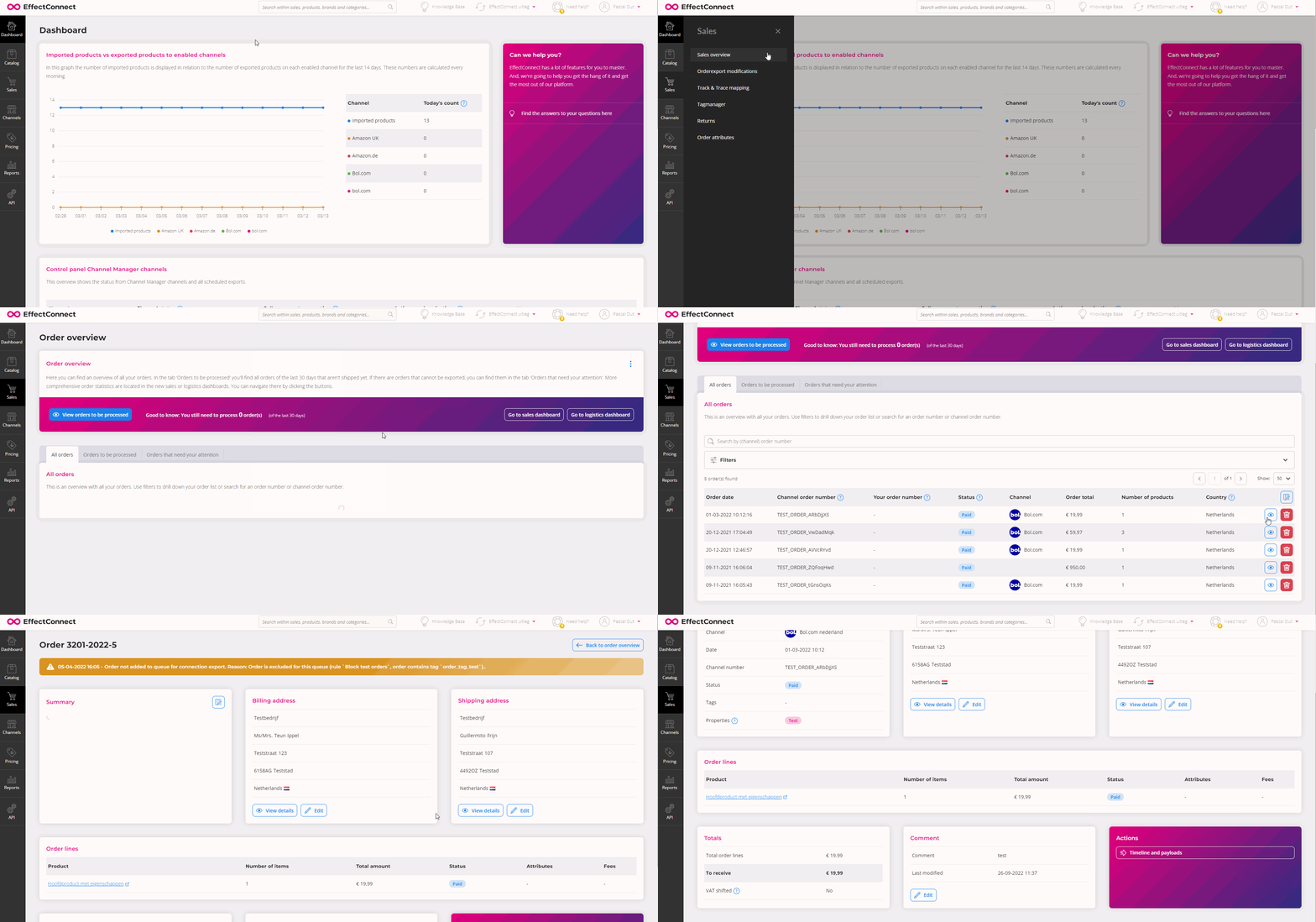
What information can you find on the order detail page?
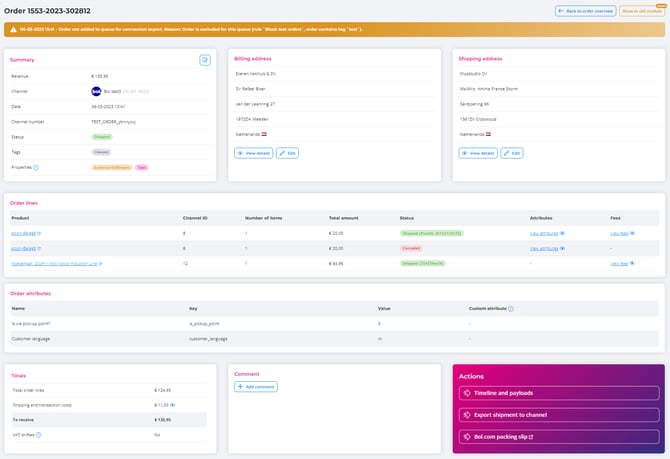
The order detail page shows the information EffectConnect has received from the marketplace. Here you can view various details and, where possible, edit them.
The image below shows an example of the full order detail page.
Summary
The summary shows the most important information about an order, such as:
- Revenue
- Channel
- Order date
- Channel order number
- Order status
- Your order number
- EC order number
You can decide which information is displayed. To do so, click the blue button in the top right corner of the summary
Order status

When EffectConnect receives an order from a marketplace, it gets the status Paid by default.

Fulfilment by bol (FFB) orders are an exception. These orders are imported directly with the status Shipped and automatically receive the tag FFB.
The order status is updated automatically when EffectConnect receives shipping information from your webshop or e-commerce system.
You can also change the order status manually. If you choose Shipped, you can add the shipping information right away.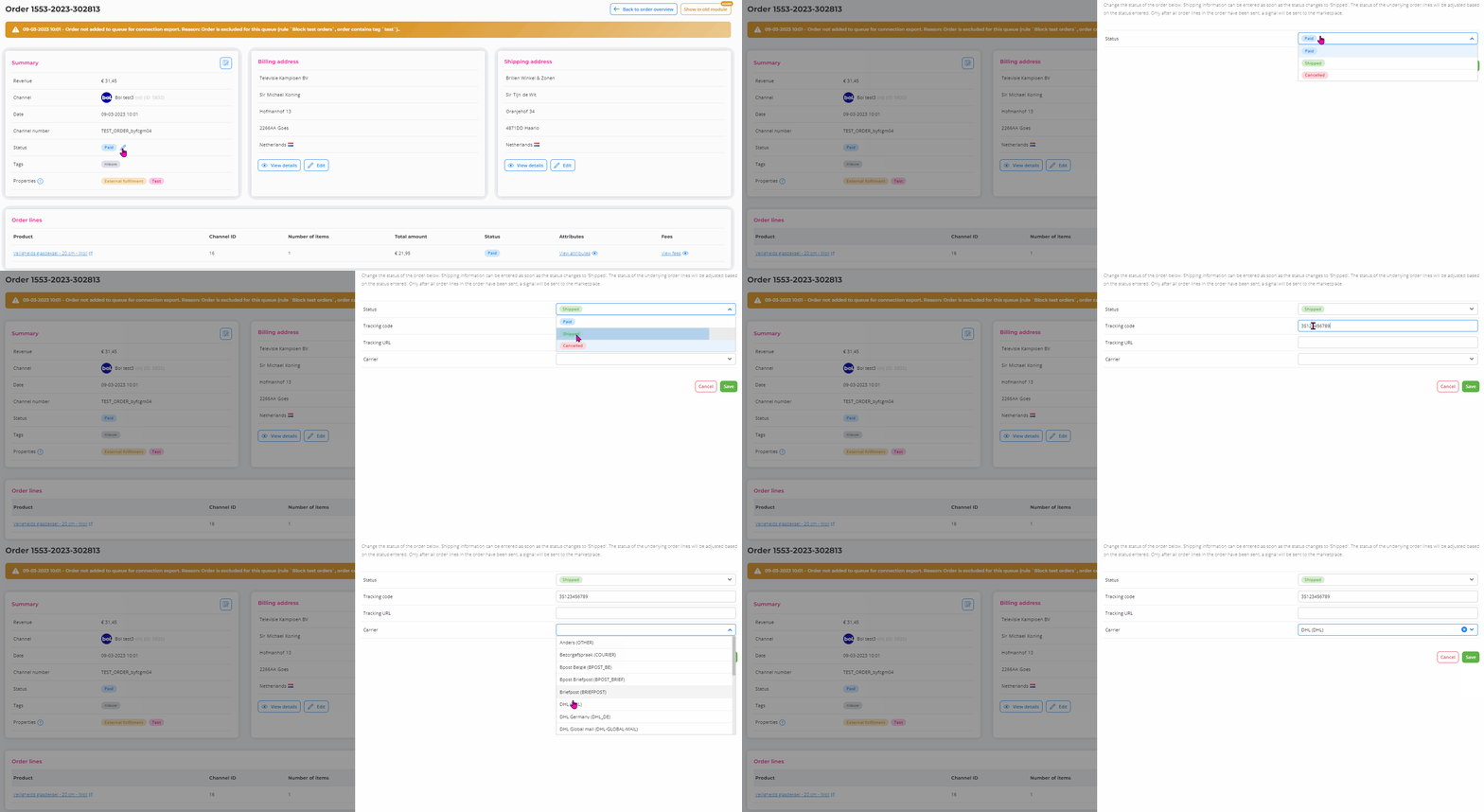
 A status cannot be reverted.
- A cancelled order can no longer be set to Paid or Shipped.
- A shipped order can no longer be cancelled. The products have already been shipped or processed as shipped.
Changing the status per order line
Order status can also be adjusted per order line or per product by clicking on Status in the order line:
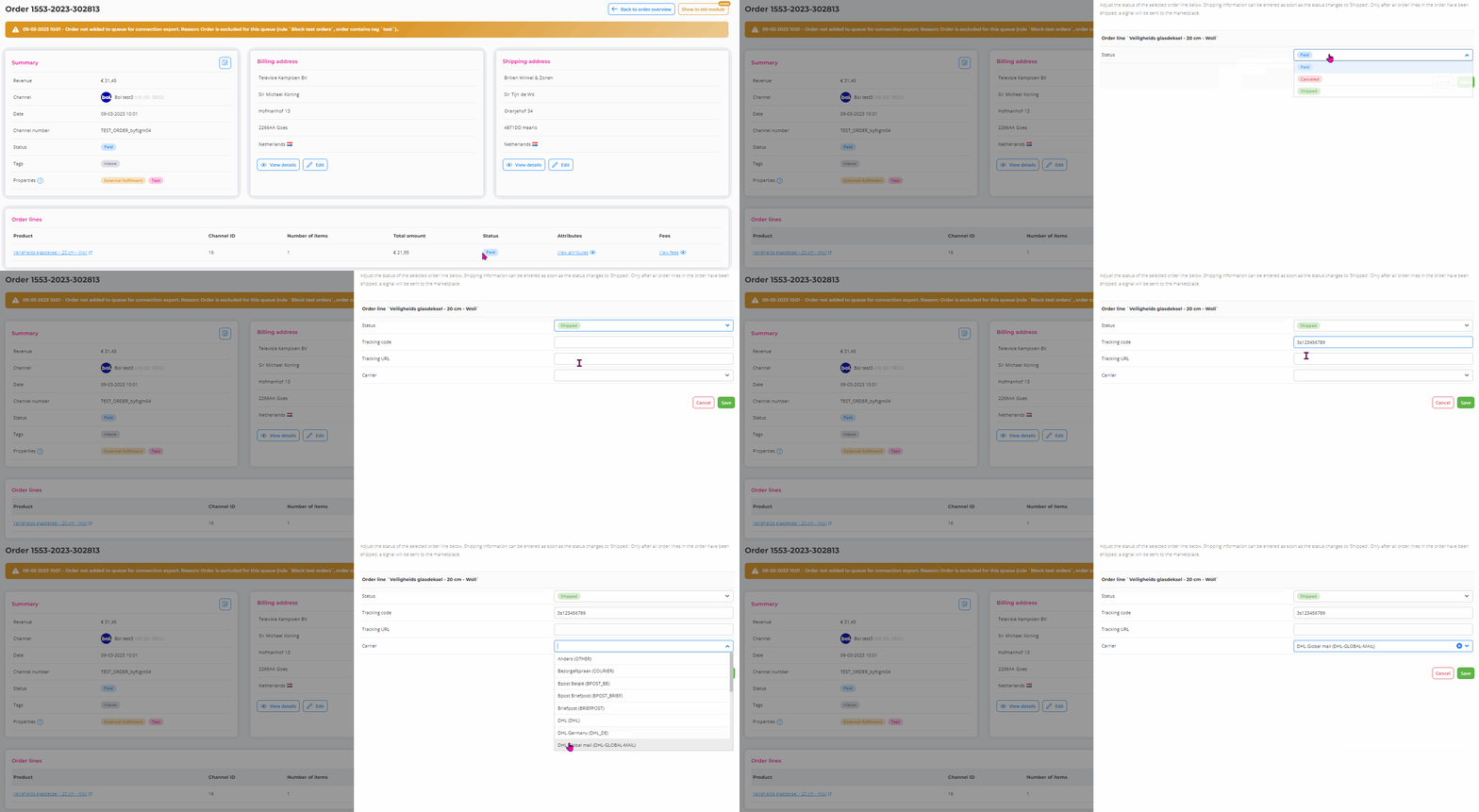
The status of the underlying order lines will be adjusted based on the status entered.
Shipping information is only exported to the marketplace once all order lines are set to Shipped, possibly in combination with partially cancelled order lines.

Tags
Tags can be added and removed as desired in an order. 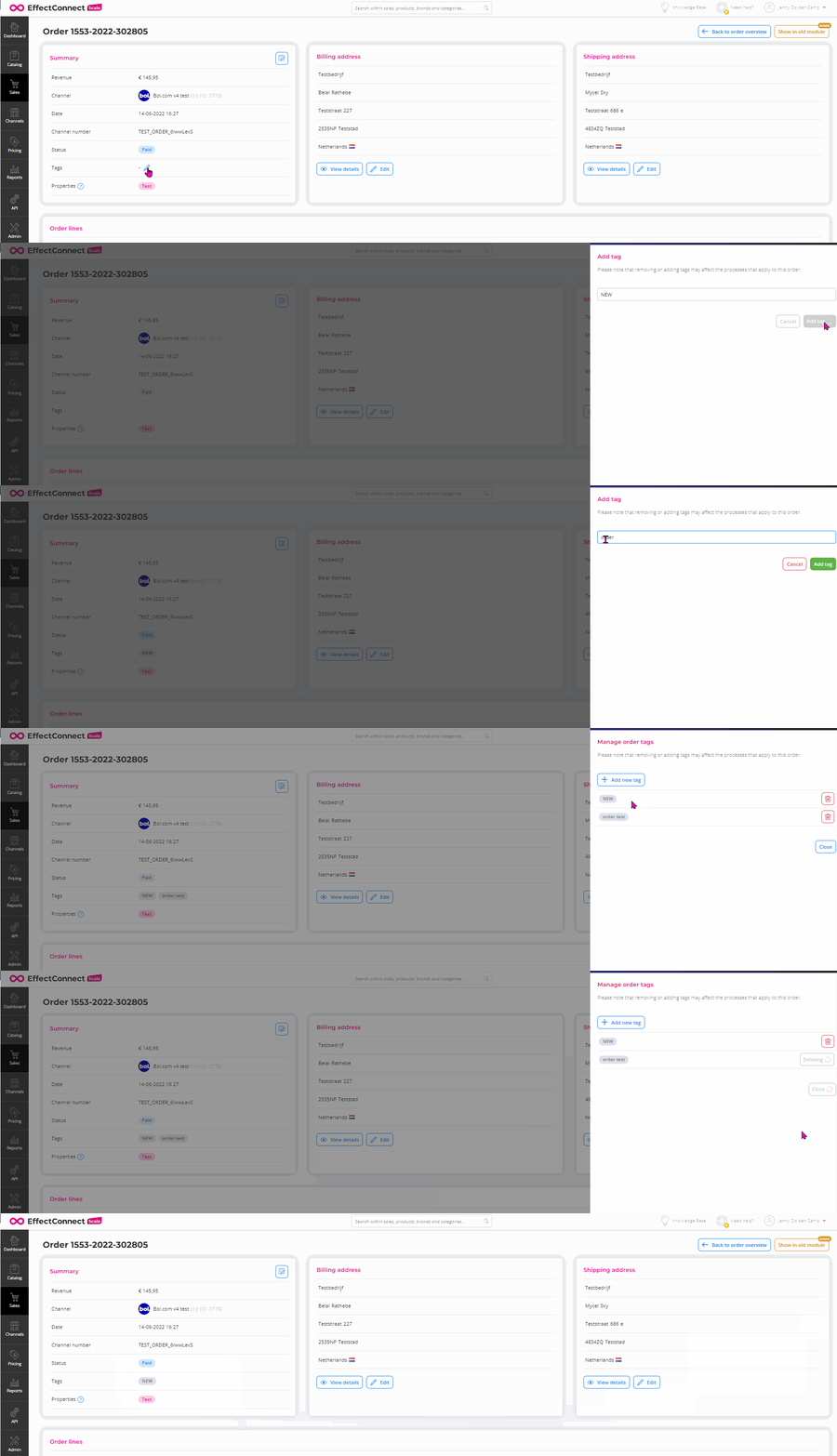
Or use our Tag Manager to assign tags automatically based on certain conditions.
For example:
- Orders from Amazon.de automatically get the tag AMZ.
- Orders with an order amount above €550 automatically get the tag Large.
When you use EffectConnect to import orders, you can read these tags and perform specific actions based on them.
🔗 Read more about the Tag Manager in EffectConnect.
Properties
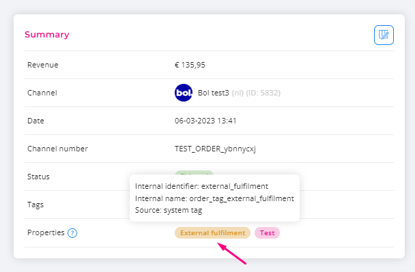
Here you find the following fixed properties that the system automatically links to the order:
- External fulfilment
- VVB
- Test
- Tax exempted
These properties cannot be removed.
➡️ Hover over a property to see its internal identifier and source.
Customer data
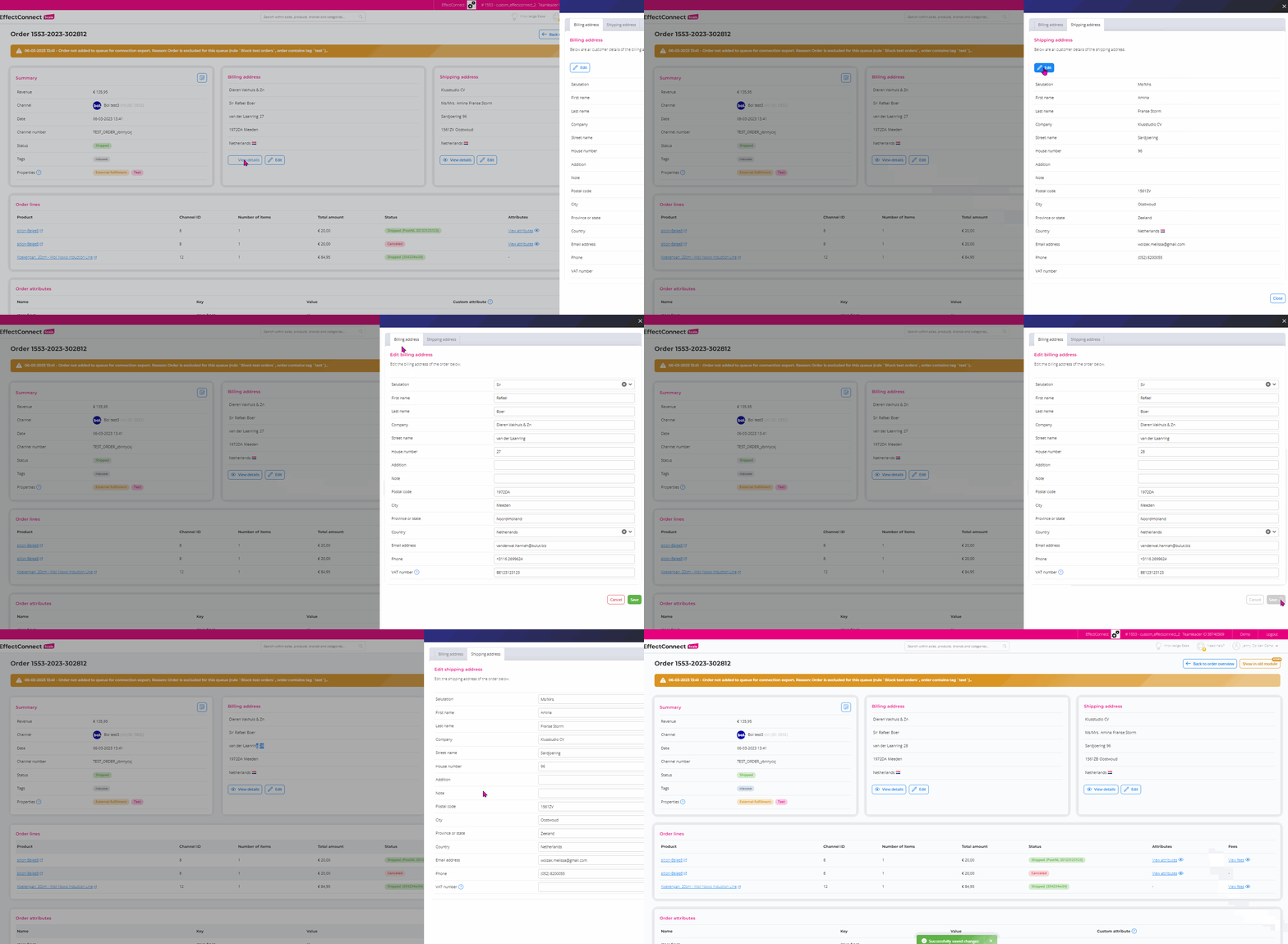
Details of the customer's billing and shipping address can be viewed and edited.Editing can be useful, for example, when a customer has entered an incomplete address and your webshop rejects the order as a result. You can also handle this by adding an order export modification. 🔗Read more about it here. After editing, a new order export or order update is started.
ℹ️ Please note: Due to privacy legislation, customer data is visible in EffectConnect for up to 30 days after the order is placed.
Order lines
Under Order lines you find the information about the individual products within an order.
Per order line you can:
- Change the order status, as long as the order line has not yet been shipped or cancelled.
- View the associated attributes.
- View the associated costs, such as transaction costs, shipping costs and commissions.

How do you change products in an order?
Sometimes you want to change a product within an order before the order is exported to your webshop.
Follow these steps:
- Open the relevant order in EffectConnect.
- Find the order line with the product you want to change.
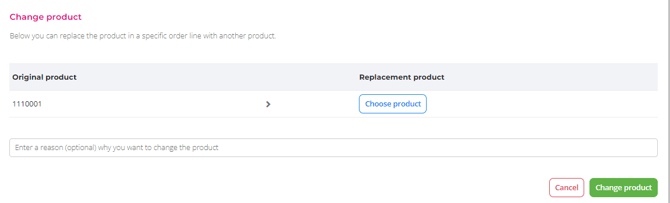
- Click the pencil icon next to the product title.
- Change the product in the window that appears.
Order attributes
Here you find both custom attributes and attributes that the system has linked automatically.
Some attributes contain information received from the marketplace. Other attributes have been added based on the custom order attributes you have set up.

Totals
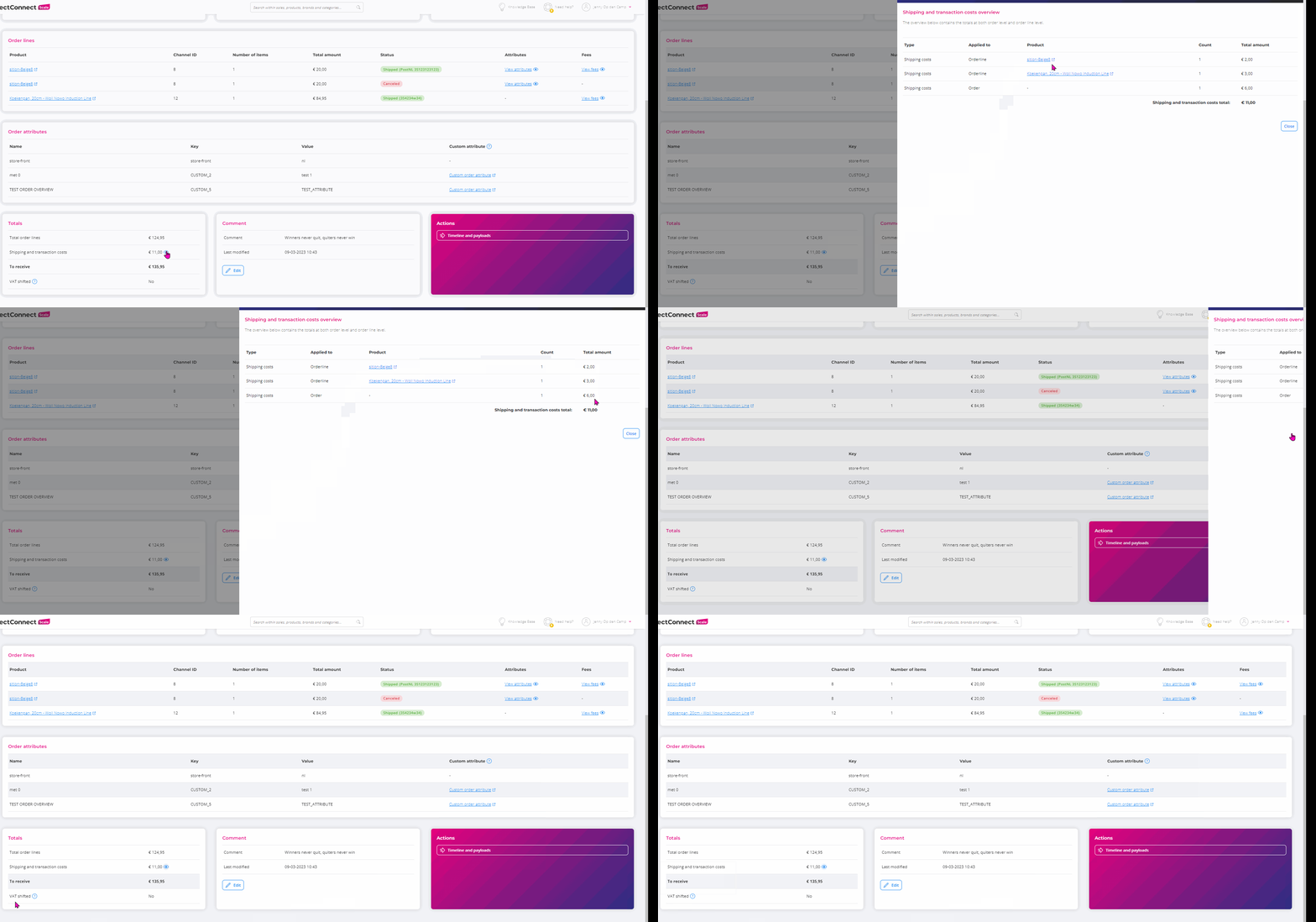
An overview of the total costs and revenue of the order can be found here.
Click the blue eye icon to view the associated costs, such as:
- Shipping costs
- Transaction costs
- Commission costs
VAT shifted, is shown as Yes or No.
Comment
You can add a maximum of one comment to an order.
Actions
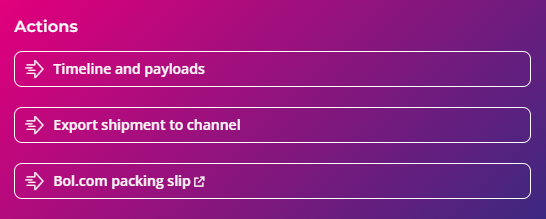
- Timeline and payloads
The timeline shows all events that have taken place on this order from start to finish.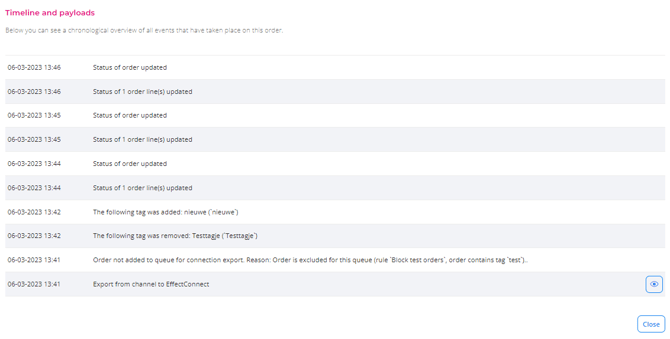
The payload contains the raw data as EffectConnect received it from the marketplace or sent it to your webshop or e-commerce system. This information can help when investigating order processing issues. You can view the payload (technical) details by clicking on the blue eye icon. - Export shipment to channel
If the initial order export is not started or finished correctly you can send the shipment update by triggering an order export towards the marketplace yourself.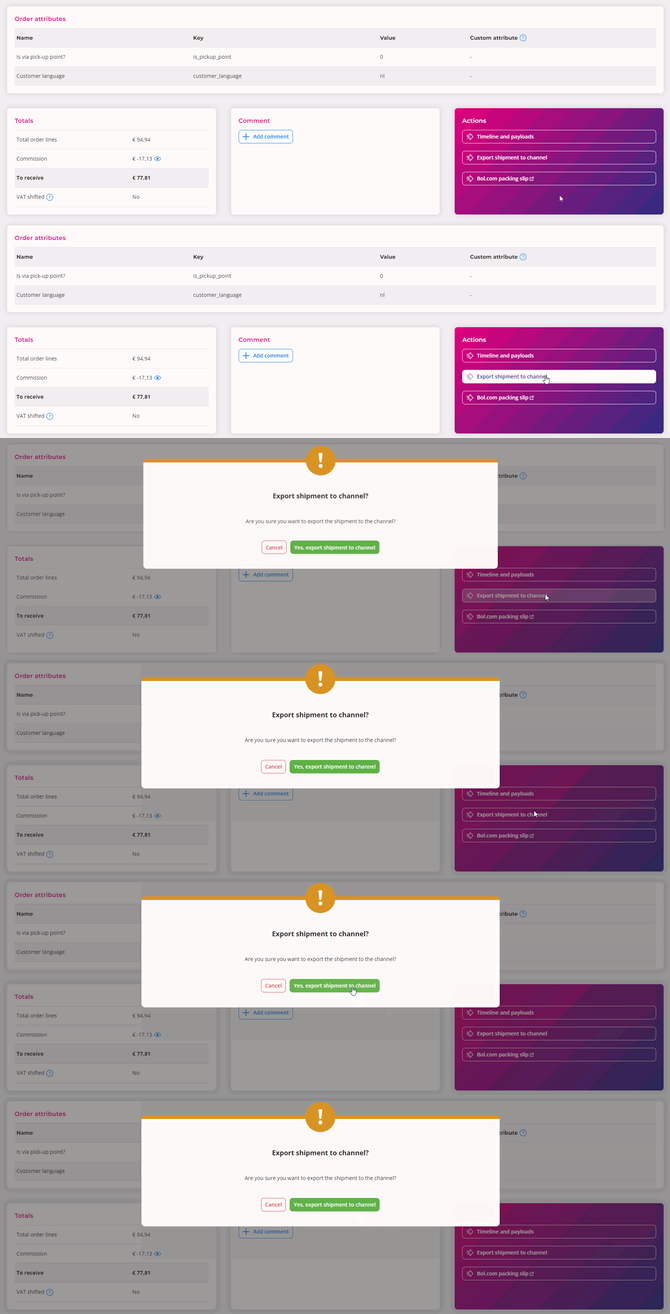
- Bol.com packing slip
Direct link to your Bol.com account to print the packing slip.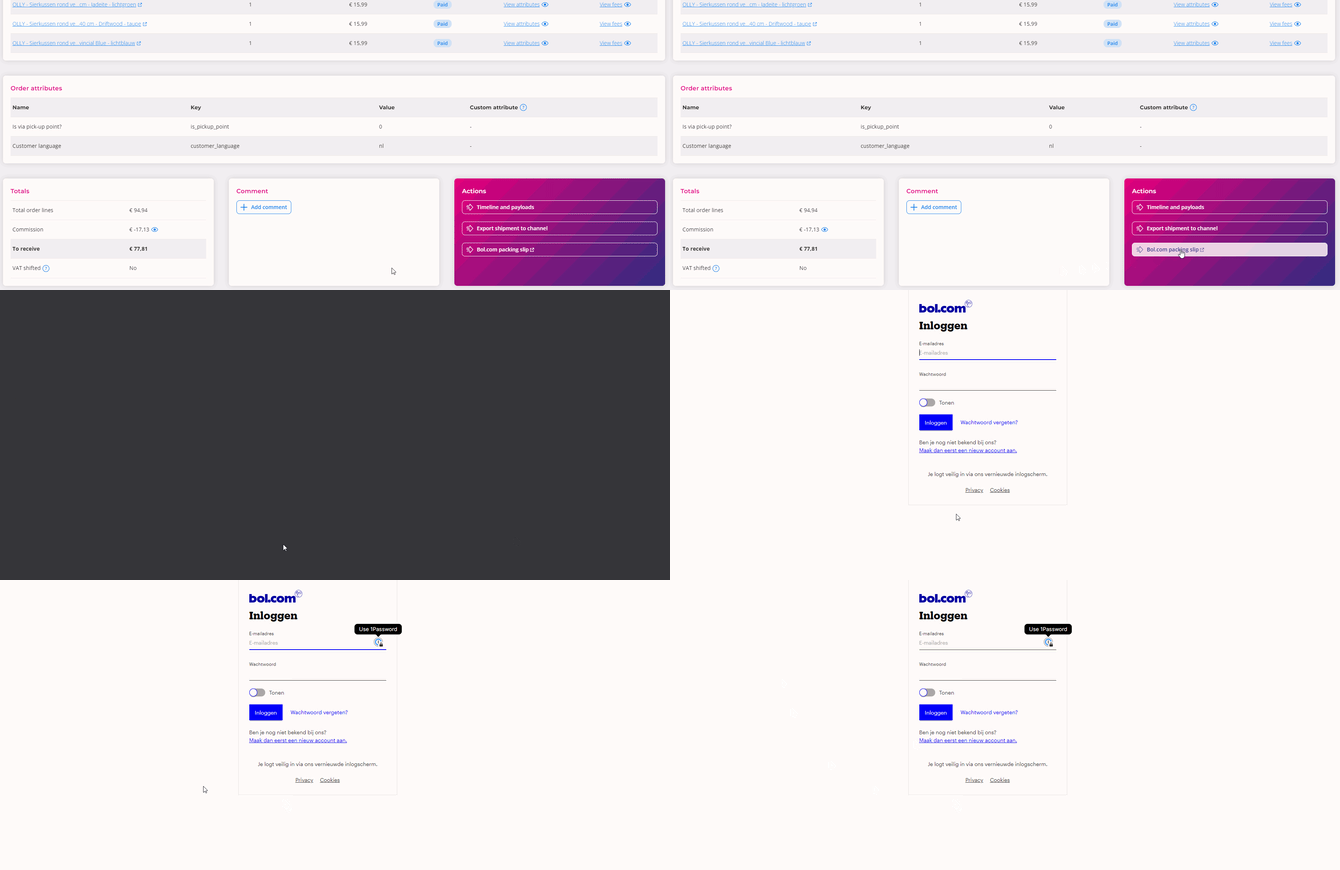
Do you have questions about an order or order processing in EffectConnect? Please contact us. We’re happy to help.